8 Powerful Browser Extension Security Risks: Benefits & Dangers

Browser extension security risks are becoming increasingly important as people use extensions to improve productivity, block advertisements, manage passwords, translate websites, and simplify online tasks. Browser extensions can make everyday browsing faster and more convenient, but some may also collect personal information, access sensitive website data, or expose users to cybersecurity threats.

A browser extension is a small software program that adds features to a web browser such as Chrome, Firefox, Edge, or Safari. Although many extensions are legitimate and useful, installing one without checking its permissions, developer, or privacy policy can create unnecessary risks 8 Powerful Browser Extension Security Risks: Benefits & Dangers.

Understanding browser extension security risks helps users make better decisions about which tools to install and which permissions to allow. In this guide, we explore eight major risks, explain their potential consequences, and share practical steps for using browser extensions more safely.

Table of Contents

  1. Excessive Permissions and Data Access
  2. Personal Data Collection and Tracking
  3. Malicious Browser Extensions
  4. Fake Extensions and Impersonation
  5. Dangerous Updates and Ownership Changes
  6. Weak Developer Security
  7. Browser Performance and Stability Problems
  8. Outdated Extensions and Unpatched Vulnerabilities
  9. How to Choose Browser Extensions Safely
  10. Browser Extension Security Risks Comparison
  11. Frequently Asked Questions
  12. Conclusion

1. Excessive Permissions and Data Access

One of the most important browser extension security risks is granting an extension more permissions than it actually needs. Depending on its permissions and browser APIs, an extension may be able to read or modify website content, interact with tabs, or access information associated with browsing activity 8 Powerful Browser Extension Security Risks: Benefits & Dangers.

Google Chrome va désormais identifier des sites web dangereux en temps réel

For example, a simple color-picker extension may not need broad access to every website you visit. If an extension requests extensive permissions without a clear explanation, users should pause and consider whether those permissions are necessary.

How to Reduce Permission Risks

Before installing an extension, review the permissions shown by your browser. Compare them with the features the extension promises to provide. If a basic tool requests broad access to browsing data, look for a more limited alternative.

Why Website Access Matters

Permissions that allow an extension to read or change data on websites can be particularly sensitive. Depending on the level of access, this may expose information displayed on webpages or entered into forms. Avoid granting broad access unless it is essential for the extension to work.

2. Personal Data Collection and Tracking

Some extensions collect data to provide their advertised features, while others may gather more information than users expect. Depending on the extension, collected data may include browsing activity, technical information, search-related data, or details about how the tool is used 8 Powerful Browser Extension Security Risks: Benefits & Dangers.

The main concern is not that every extension collects sensitive information. Rather, users may not understand what is collected, why it is collected, how long it is retained, or whether it is shared with third parties.

Protect Your Browsing Privacy

Read the extension’s privacy policy before installing it, especially if it handles browsing history, shopping activity, documents, or account information. Prefer developers who clearly explain their data practices and collect only the information necessary for the service.

Remove extensions you no longer use. Fewer installed extensions generally mean fewer tools with potential access to your browsing environment.

Always Food Safe Help Center

3. Malicious Browser Extensions

Malicious browser extensions are designed to perform harmful activities rather than provide legitimate benefits. Depending on their capabilities, they may redirect searches, display unwanted advertisements, collect browsing information, or attempt to send users to fraudulent websites.

Some malicious extensions initially appear useful. They may advertise themselves as download managers, coupon finders, PDF tools, AI assistants, or productivity boosters. Their harmful behavior may not become obvious immediately 8 Powerful Browser Extension Security Risks: Benefits & Dangers.

Warning Signs of a Malicious Extension

Be cautious if an extension unexpectedly changes your homepage, modifies your search engine, opens unfamiliar tabs, or displays advertisements on websites where they did not previously appear. Other warning signs include unexplained permission changes, suspicious redirects, and requests to install additional software.

If you suspect an extension is malicious, disable and remove it through your browser’s official settings. Review your browser settings afterward and run a security scan using trusted security software if necessary.

4. Fake Extensions and Impersonation

Another serious browser extension security risk involves fake extensions that imitate trusted tools. Criminals may copy a popular extension’s name, logo, description, or visual design to trick users into installing an imitation.

A fake extension might contain advertising, collect unnecessary data, redirect traffic, or attempt to steal login information. A high download count or convincing design does not guarantee that an extension is safe.

How to Identify Fake Extensions

Check the exact extension name, publisher, official website, and available reviews. Follow links from the developer’s legitimate website when possible, and be careful with advertisements or unexpected download links 8 Powerful Browser Extension Security Risks: Benefits & Dangers.

Look for a consistent history of updates and a clear explanation of the extension’s purpose. Reviews can be useful, but they should not be your only source of trust because ratings and comments can sometimes be misleading.

5. Dangerous Updates and Ownership Changes

An extension that appears trustworthy today may change over time. Developers can release new versions, change their business model, or transfer ownership to another company. In some cases, a later version may introduce new data collection, unwanted advertisements, or harmful behavior.

This risk is particularly difficult to recognize because users may have installed the extension months or years earlier and may continue trusting it automatically.

Monitor Extension Changes

Review important extensions occasionally, particularly after major updates. Check whether the developer, permissions, privacy policy, or stated purpose has changed.

If an extension suddenly requests broader access or behaves differently, investigate before approving the request. If you no longer need it, removing it is often the simplest option 8 Powerful Browser Extension Security Risks: Benefits & Dangers.

6. Weak Developer Security

Browser extensions are software, and their safety depends partly on the quality of their development and maintenance. Poorly written code, insecure data handling, and inadequate testing can create vulnerabilities that attackers may exploit.

For example, an extension that communicates insecurely with an external service or handles sensitive information incorrectly may expose data under certain conditions. The exact risk depends on the design, permissions, and security controls involved.

Choose Actively Maintained Extensions

Prefer extensions with identifiable developers, clear support information, and a credible maintenance history. Check whether security problems are addressed through updates and whether the developer explains how data is handled.

Avoid extensions that have been abandoned for a long time when they perform sensitive tasks, especially if safer, maintained alternatives are available 8 Powerful Browser Extension Security Risks: Benefits & Dangers.

7. Browser Performance and Stability Problems

Not all browser extension security risks involve data theft. Some extensions consume excessive memory or processing power, slow down page loading, interfere with other extensions, or cause browser crashes.

Extensions that run frequent background tasks or load unnecessary scripts can affect performance. Installing many extensions may also make it harder to identify which tool is causing a problem.

Improve Browser Performance

Install only the extensions you genuinely need. Disable tools you use infrequently and remove duplicates that perform the same function.

If your browser suddenly becomes slow, test it with extensions disabled and re-enable them individually. This can help identify a problematic extension without immediately assuming that the cause is malware 8 Powerful Browser Extension Security Risks: Benefits & Dangers.

8. Outdated Extensions and Unpatched Vulnerabilities

Software vulnerabilities can be discovered after an extension has already been released. If the developer does not fix the issue, an outdated extension may continue using vulnerable code or outdated components.

The presence of an old version does not automatically mean an extension is unsafe, but a lack of maintenance can increase uncertainty. This matters especially for extensions that handle sensitive website data or have broad permissions.

Keep Extensions Updated

Enable automatic updates where available and use the official extension store or browser update mechanism. Check the developer’s update history when deciding whether to keep an extension installed.

If a security warning appears, take it seriously. Disable or remove the affected extension until you can verify that the issue has been resolved.

How to Choose Browser Extensions Safely

Reducing browser extension security risks starts before installation. Search for the official extension rather than clicking unfamiliar download advertisements. Verify the publisher and review the permissions requested by the extension.

Next, examine its privacy policy and determine whether its features justify the information it can access. A tool that manages passwords, reads documents, or interacts with financial websites deserves more careful evaluation than a simple visual customization tool.

After installation, monitor its behavior. Unexpected redirects, changes to browser settings, new advertisements, and unfamiliar permission requests should prompt further investigation. Keep the browser and extensions updated, and remove tools that are no longer necessary 8 Powerful Browser Extension Security Risks: Benefits & Dangers.

For work or school devices, follow the organization’s security policies. Managed browsers may provide approved extension lists or restrictions that help reduce the risk of untrusted software.

Browser Extension Security Risks Comparison

The following table summarizes common extension risks and practical ways to reduce them.

Security riskPossible consequencePrevention
Excessive permissionsUnnecessary access to website dataReview permissions
Data collectionLoss of browsing privacyRead the privacy policy
Malicious extensionsRedirects, unwanted ads, or data exposureInstall from trusted sources
Fake extensionsInstalling an imitation of a trusted toolVerify the publisher
Risky updatesUnexpected changes in behaviorReview major changes
Weak developer securityVulnerabilities or insecure data handlingChoose maintained extensions
Performance problemsSlow browsing or crashesRemove unnecessary tools
Outdated softwareUnpatched vulnerabilitiesUpdate or replace extensions

Browser Extension Security Risk Awareness Graph

The following scores are illustrative awareness priorities, not measured incident rates or statistical estimates. They help readers identify areas worth checking when reviewing browser extensions.

Security areaIllustrative priority
Permission review10/10
Developer verification9/10
Privacy policy review9/10
Extension updates8/10
Unused extension removal8/10
Browser performance checks6/10

These scores are only a guide for organizing security habits. The actual risk of any extension depends on its code, permissions, developer practices, and how it is used 8 Powerful Browser Extension Security Risks: Benefits & Dangers.

What Should You Do If an Extension Seems Unsafe?

If a browser extension behaves suspiciously, disable it and remove it using your browser’s official extension settings. Check your homepage, default search engine, and notification permissions for unexpected changes.

If you entered a password after being redirected to a suspicious page, use a trusted device or connection to change that password and review your account’s recent activity. Enable multifactor authentication where possible.

If the extension may have accessed sensitive work or financial information, follow the relevant organization’s security procedures or contact the affected service provider. A security scan may also be appropriate if you downloaded additional software or suspect a broader device compromise.

Removing an extension can stop its future activity, but it cannot guarantee that previously collected information has been deleted or that every related change has been reversed. Review your accounts and browser settings carefully.

Frequently Asked Questions

Are browser extensions safe to use?

Many browser extensions are legitimate and useful, but safety depends on the developer, permissions, code, maintenance, and data practices. Review these factors before installing an extension 8 Powerful Browser Extension Security Risks: Benefits & Dangers.

Can browser extensions steal passwords?

Some malicious or compromised extensions may be capable of accessing sensitive information, depending on their permissions and how the browser handles that information. Use trusted tools, review permissions, and enable multifactor authentication.

Do browser extensions track browsing history?

Some extensions collect browsing-related data to provide features or analytics. The amount and type of data vary, so read the privacy policy and avoid granting unnecessary access.

Should I remove extensions I do not use?

Yes, removing unused extensions is a sensible security and privacy practice. It reduces the number of installed tools that could introduce vulnerabilities or request access to browsing data 8 Powerful Browser Extension Security Risks: Benefits & Dangers.

Can a trusted extension become unsafe?

It is possible. Updates, ownership changes, new permissions, or changes in data practices may alter an extension’s risk over time. Review important extensions periodically rather than trusting them indefinitely 8 Powerful Browser Extension Security Risks: Benefits & Dangers.

Conclusion

Browser extension security risks can affect privacy, account safety, browser performance, and the reliability of your online experience. Extensions offer useful features, but installing too many tools or approving unnecessary permissions can increase exposure to unwanted behavior and security problems.

The best approach is to verify developers, check permissions, review privacy policies, keep extensions updated, and remove tools you no longer need. If an extension starts behaving unexpectedly, disable it and investigate before continuing to use it.

By following these eight practical security checks, you can benefit from browser extensions while making more informed choices about your digital privacy and online safety 8 Powerful Browser Extension Security Risks: Benefits & Dangers.

8 Powerful Public Wi-Fi Security Mistakes: Safety & Risks

Public Wi-Fi security mistakes can put your personal information, online accounts, and digital privacy at risk. Public Wi-Fi is convenient when you are visiting a café, airport, hotel, library, or shopping center, but an unsecured network may expose users to cyber threats. Many people connect to free internet without checking the network name, using secure websites, or protecting their devices. These small mistakes can create opportunities for cybercriminals to steal information or trick users into revealing sensitive details.

Understanding public Wi-Fi security mistakes is an important step toward safer internet use. You do not need to avoid every public network, but you should know how to recognize common risks and reduce them. This guide explains eight mistakes people frequently make, why they matter, and how simple security habits can help protect your information 8 Powerful Public Wi-Fi Security Mistakes: Safety & Risks.

Table of Contents

  1. Connecting to Fake Wi-Fi Networks
  2. Using Public Wi-Fi Without a VPN
  3. Accessing Sensitive Accounts on Unsecured Networks
  4. Ignoring HTTPS Website Security
  5. Sharing Files and Keeping Device Discovery On
  6. Reusing Passwords Across Accounts
  7. Ignoring Software and Security Updates
  8. Staying Connected After Leaving the Location
  9. How to Use Public Wi-Fi More Safely
  10. Public Wi-Fi Security Risks Comparison
  11. Conclusion

1. Connecting to Fake Wi-Fi Networks

One of the most common public Wi-Fi security mistakes is connecting to a fake network. Cybercriminals can create Wi-Fi hotspots with names that look similar to legitimate networks. For example, a fake network might use a café’s name with an extra word or a slightly different spelling 8 Powerful Public Wi-Fi Security Mistakes: Safety & Risks.

무료 와이파이, 편리함 뒤 숨은 해킹 위험은? : 다나와 DPG는 내맘을 디피지

When users connect to a malicious hotspot, an attacker may try to redirect them to fraudulent websites, monitor certain network activity, or encourage them to enter personal information. The exact risk depends on how the network is configured and what security protections are in place.

How to Avoid Fake Wi-Fi Networks

Always ask staff for the official Wi-Fi name before connecting. Avoid networks that request unnecessary personal details or ask you to install unknown applications or certificates. If two networks have similar names, do not assume that either one is legitimate until you verify it 8 Powerful Public Wi-Fi Security Mistakes: Safety & Risks.

2. Using Public Wi-Fi Without a VPN

A Virtual Private Network, commonly known as a VPN, creates an encrypted connection between your device and a VPN server. It can help protect network traffic from people monitoring the local Wi-Fi connection.

Using public Wi-Fi without a VPN is not automatically unsafe because modern websites and apps often use encryption. However, a trustworthy VPN can provide an additional layer of protection, especially on networks you do not control 8 Powerful Public Wi-Fi Security Mistakes: Safety & Risks.

Choosing a VPN Carefully

Choose a reputable VPN provider with clear privacy policies, strong encryption, and a good security record. Avoid unknown free VPN applications that make unclear promises about protecting your privacy.

A VPN does not make every online activity safe. It cannot prevent phishing, protect you from every malicious download, or guarantee that a fake website is legitimate. Continue checking website addresses and protecting your accounts even when a VPN is active 8 Powerful Public Wi-Fi Security Mistakes: Safety & Risks.

3. Accessing Sensitive Accounts on Unsecured Networks

Another important public Wi-Fi security mistake is accessing sensitive accounts without considering the risks. Banking, shopping, email, and work accounts can contain personal or financial information that you should protect carefully.

Modern banking apps and reputable websites generally use encryption, but attackers can still exploit phishing pages, compromised devices, or weak account security. A fake login page may look almost identical to a real one 8 Powerful Public Wi-Fi Security Mistakes: Safety & Risks.

Safer Ways to Access Important Accounts

Whenever possible, use your mobile network for sensitive tasks if you do not trust the available Wi-Fi. If you must use public Wi-Fi, check the website address carefully, use official apps, and enable multifactor authentication on important accounts8 Powerful Public Wi-Fi Security Mistakes: Safety & Risks.

Why Multifactor Authentication Matters

Multifactor authentication adds another verification step beyond your password. Depending on the method, this may involve an authenticator app, a security key, or another approved verification process. It can reduce the damage caused by a stolen password, although no method eliminates every risk 8 Powerful Public Wi-Fi Security Mistakes: Safety & Risks.

4. Ignoring HTTPS Website Security

HTTPS helps encrypt information sent between your browser and a website. Ignoring website security indicators can make it easier to fall for fraudulent pages or misunderstand the protection available to you.

Before entering a password, payment information, or personal details, check the website’s address. Look for the correct domain and a secure HTTPS connection 8 Powerful Public Wi-Fi Security Mistakes: Safety & Risks.

However, remember that HTTPS does not prove a website is trustworthy. Scam websites can also use HTTPS. A familiar-looking logo or a padlock symbol alone is not enough to confirm that a website is genuine.

What to Check Before Signing In

Confirm that the domain name is spelled correctly. Avoid opening login links from unexpected messages, pop-ups, or unfamiliar QR codes. When accessing an important service, type its known address yourself or use its official application 8 Powerful Public Wi-Fi Security Mistakes: Safety & Risks.

5. Sharing Files and Keeping Device Discovery On

Some devices include features that allow nearby computers, phones, or other devices to discover them or share files. Leaving these settings enabled on public networks may expose more information than necessary.

The risk varies by device and operating system. File sharing does not automatically mean that strangers can access your files, but unnecessary sharing features increase the number of services you need to secure.

Protect Your Device on Public Wi-Fi

Set the network profile to Public when your operating system offers that option. Turn off file sharing, printer sharing, and unnecessary device discovery while connected to unfamiliar networks. Keep your firewall enabled and use current security settings.

These steps are particularly useful when connecting a laptop to Wi-Fi in a hotel, coworking space, airport, or conference center 8 Powerful Public Wi-Fi Security Mistakes: Safety & Risks.

NvoVPN news & updates

6. Reusing Passwords Across Accounts

Reusing the same password across multiple websites is a serious security mistake, whether you are using public Wi-Fi or your home internet. If one service suffers a data breach, criminals may try the exposed password on other accounts.

Public Wi-Fi can increase exposure to fraudulent login pages, making password reuse especially concerning. A single compromised password could affect your email, shopping, social media, or other accounts.

Create Stronger Password Habits

Use a unique password for every important account. A reputable password manager can generate and store long passwords so that you do not have to memorize each one 8 Powerful Public Wi-Fi Security Mistakes: Safety & Risks.

Enable multifactor authentication wherever possible, especially for email, financial accounts, and accounts that can reset other passwords. If you suspect that you entered your password on a fake website, change it immediately from a trusted device and review your account activity.

7. Ignoring Software and Security Updates

Outdated operating systems, browsers, and applications may contain security vulnerabilities that attackers can exploit. Connecting to public Wi-Fi does not automatically make an outdated device vulnerable, but using unpatched software can increase the consequences of other security weaknesses.

Updates often include fixes for known vulnerabilities and improvements to security features 8 Powerful Public Wi-Fi Security Mistakes: Safety & Risks.

Keep Your Devices Updated

Install operating system and browser updates from official sources. Turn on automatic updates when practical, and use built-in security protections. Avoid downloading updates from pop-ups or websites that appear unexpectedly while browsing.

If a public Wi-Fi login page tells you to install an unfamiliar application or certificate, stop and verify the request with the venue or service provider before proceeding.

8. Staying Connected After Leaving the Location

Many phones and laptops can automatically reconnect to previously used Wi-Fi networks. Although this feature is convenient, it can create risks if a device tries to connect to a network with a familiar name in an untrusted location 8 Powerful Public Wi-Fi Security Mistakes: Safety & Risks.

This is not a guarantee that your device will be attacked. The concern is that automatic connections can happen without you checking whether the network is genuine or necessary.

Turn Off Unnecessary Automatic Connections

Disable automatic joining for public networks you no longer use. Forget unfamiliar or unneeded Wi-Fi networks after leaving the venue. Turn off Wi-Fi when you do not need it, particularly while traveling between public places.

These simple steps reduce unnecessary connections and help you stay aware of which network your device is using 8 Powerful Public Wi-Fi Security Mistakes: Safety & Risks.

How to Use Public Wi-Fi More Safely

Avoiding public Wi-Fi security mistakes does not require advanced technical knowledge. A few consistent habits can significantly improve your protection.

First, verify the network name with the business or organization that provides it. Second, use a trustworthy VPN when appropriate, particularly if you want additional protection on an unfamiliar network. Third, check website addresses before entering sensitive information and avoid suspicious links.

You should also use unique passwords, enable multifactor authentication, update your software, and keep file-sharing features disabled on public networks. If a network asks you to provide unusual information or install unfamiliar software, do not proceed until you have verified the request.

For banking or other highly sensitive activities, consider switching to mobile data when available. If you use a public computer rather than your own device, do not save passwords, always sign out of your accounts, and avoid accessing especially sensitive information 8 Powerful Public Wi-Fi Security Mistakes: Safety & Risks.

Public Wi-Fi Security Risks Comparison

The following table summarizes common mistakes, their potential risks, and practical ways to reduce exposure.

Security mistakePotential riskSafer practice
Connecting to fake Wi-FiPhishing or malicious redirectionVerify the network name
Not using a VPNLess protection against local network monitoringConsider a reputable VPN
Accessing sensitive accounts carelesslyExposure to phishing or account attacksUse official apps and mobile data when appropriate
Ignoring HTTPS and domain namesEntering details on fraudulent websitesCheck the URL and HTTPS
Leaving file sharing onUnnecessary device exposureDisable sharing on public networks
Reusing passwordsMultiple accounts may be compromisedUse unique passwords
Ignoring updatesKnown vulnerabilities may remain unpatchedUpdate software regularly
Automatic reconnectionJoining an unverified networkDisable automatic joining when unnecessary

Public Wi-Fi Security: Risk Awareness Graph

The graph below is an illustrative awareness score, not a measured statistic or a ranking based on real-world attack data. It shows how strongly each habit deserves attention when using public Wi-Fi.

Security habitIllustrative priority score
Verify Wi-Fi network9/10
Use unique passwords10/10
Check website addresses10/10
Keep software updated9/10
Disable unnecessary sharing7/10
Review automatic connections7/10
Consider a trustworthy VPN8/10

These scores are intended only to help readers organize their security habits. Actual risk depends on the network, device, online activity, and security protections in use.

What Should You Do If You Suspect a Public Wi-Fi Attack?

If you think you connected to a fake network or entered information on a suspicious website, disconnect from the network. Use a trusted connection to change any exposed passwords, starting with your email and financial accounts. Enable multifactor authentication, review recent sign-ins, and sign out of unfamiliar sessions 8 Powerful Public Wi-Fi Security Mistakes: Safety & Risks.

If you entered payment details on a suspicious page, contact your bank or card provider using its official contact information. Run your device’s built-in security scan if you suspect a malicious download, and seek reputable technical support if unusual activity continues.

Do not assume that disconnecting from Wi-Fi automatically reverses anything that may already have happened. Taking action quickly can help limit further damage.

Conclusion

Public Wi-Fi security mistakes can expose users to fake hotspots, phishing, account theft, and unnecessary device risks. However, public Wi-Fi is not automatically dangerous, and modern encryption protects much of the traffic sent through legitimate websites and applications.

The most useful approach is to verify network names, check website addresses, use unique passwords, enable multifactor authentication, keep software updated, and disable unnecessary sharing. A reputable VPN can add another layer of protection, but it should be part of a broader security routine.

By recognizing these eight public Wi-Fi security mistakes and adopting safer browsing habits, you can enjoy the convenience of free internet while making more informed decisions about your digital privacy 8 Powerful Public Wi-Fi Security Mistakes: Safety & Risks.

Frequently Asked Questions

Is public Wi-Fi safe to use?

It can be reasonably safe when you take precautions, but the risk depends on the network, device, and activity. Verify the network and use secure websites and apps.

Can someone steal my passwords through public Wi-Fi?

It is possible in some circumstances, especially through phishing pages, malicious hotspots, or other security weaknesses. HTTPS, unique passwords, and multifactor authentication help reduce risk.

Does a VPN protect me on public Wi-Fi?

A trustworthy VPN encrypts traffic between your device and the VPN server. It does not protect you from every scam, malicious file, or fake website.

Should I use public Wi-Fi for online banking?

If you are unsure about a network, mobile data is a sensible alternative. If you use public Wi-Fi, use your bank’s official app or verified website, check your connection, and enable account security features.

What is the biggest public Wi-Fi security mistake?

There is no single mistake that is always the biggest. Connecting to a fake hotspot, entering credentials on a phishing page, and reusing passwords can all create serious risks. The best defense is to combine several security practices.

7 Powerful App Permissions: Protect Privacy & Avoid Risks

Table of Contents: App Permissions

  1. Introduction to App Permissions
  2. What Are App Permissions?
  3. App Permissions for Camera and Microphone
  4. App Permissions for Location Tracking
  5. App Permissions for Contacts and Photos
  6. App Permissions for Files and Notifications
  7. App Permissions for Privacy and Security
  8. How to Manage App Permissions Safely
  9. Comparison Table of App Permissions
  10. Conclusion: Protect Privacy with App Permissions

Introduction to App Permissions

App Permissions play an important role in protecting smartphone privacy and security. Whenever you install an application, it may request access to certain features of your device, such as your camera, microphone, location, contacts, photos, or files. Some permissions are necessary for an app to work correctly, while others may provide access to information that the app does not genuinely need.

App Permissions – Natix Network Help Center

Understanding app permissions helps you make better decisions about which applications you trust and what information you share. For example, a navigation app may need your location to provide directions, but a simple calculator usually has no reason to access your microphone or contacts.

Although permissions improve functionality, granting unnecessary access can create privacy risks. An application with excessive permissions may collect more information than you expect, especially when combined with online accounts, advertising services, or third-party software.

The good news is that you can review and manage many permissions through your smartphone settings. By checking requests carefully, limiting access, and reviewing installed applications regularly, you can enjoy useful features while reducing unnecessary privacy risks.

What Are App Permissions?

App permissions are controls that allow applications to access particular features or data on your smartphone. Depending on your operating system and its version, permissions may apply to hardware features, personal information, or files stored on the device.

When an application requests permission, consider why it needs that access and whether the requested feature matches its main purpose. A video-calling app may reasonably request camera and microphone access, while a basic flashlight app generally should not need access to your contacts.

Why App Permissions Matter for Smartphone Users

App permissions help you maintain control over how applications interact with your device. They can reduce unwanted access to private information and help you identify applications that request more access than their features appear to require.

However, permission controls are not a complete privacy guarantee. An application may still collect information you voluntarily provide or information available through other permitted features. Reviewing an app’s privacy policy and reputation remains important.

1. App Permissions for Camera and Microphone

Camera and microphone permissions allow applications to use your phone’s camera and audio input. These features are essential for photography, video calls, voice messages, recording, and certain accessibility tools.

Problems can arise when an application requests access without a clear reason. For example, a simple wallpaper app may not need microphone access to perform its primary function.

How to Control Camera and Microphone App Permissions

Review which applications can access your camera and microphone through your device settings. Where available, choose an option such as allowing access only while using the app or asking for permission each time.

On many modern Android devices and iPhones, privacy indicators can show when the camera or microphone is active. Exact controls depend on the operating system and device version.

Disable access when it is unnecessary, but remember that removing permission may prevent some features from working. You can restore access later if you decide the feature is useful.

Putting Data Transparency Back in Consumers’ Hands with the Latest Galaxy Security and Privacy Dashboard | Samsung Mobile Press

2. App Permissions for Location Tracking

Location permission allows an application to determine where your device is located, using available methods such as GPS, nearby networks, or other location services.

Location access is useful for navigation, weather forecasts, ride-hailing, food delivery, and finding nearby businesses. However, constant access may reveal more about your routines and movements than you intend to share.

How Location App Permissions Protect Privacy

Choose the least extensive location access that meets your needs. If an app only needs to show nearby places while you are using it, continuous background access may be unnecessary.

Depending on your device, you may be able to select approximate rather than precise location. You can also review whether an application is permitted to access location in the background.

A weather app, for example, may work adequately with approximate location or a manually selected city. A navigation app may need precise location while providing turn-by-turn directions.

3. App Permissions for Contacts and Photos

Contacts and photos can contain personal information about you and other people. Contact lists may include names, phone numbers, email addresses, and relationship details, while photo libraries may contain private images, screenshots, and location-related metadata.

Some applications genuinely need this information. Messaging apps may use contacts to help you find friends, while photo editors need access to images you choose to edit.

How to Limit Contacts and Photos App Permissions

Grant access only when it supports a feature you actually use. Where your device offers selected-photo access, use it instead of allowing an application to browse your entire photo library.

If an app requests your complete contact list for a feature that does not appear to need it, investigate before approving the request.

You should also remember that sharing an image directly with an application can reveal the image itself even if broad photo-library permission is disabled. Check what you are uploading before sending it.

4. App Permissions for Files and Notifications

File permissions can allow an application to open, save, or manage documents and other stored content. Their exact scope depends on the operating system and the access method used by the application.

A document editor needs access to files you choose to open, but a simple game may not need broad access to your personal documents.

Notifications are different: they allow apps to display alerts, reminders, messages, and promotional content. Excessive notifications can be distracting, and sensitive message previews may appear on your lock screen.

How to Manage Files and Notifications App Permissions

Use your phone’s file picker when available to select specific documents instead of granting broad storage access. Review notification settings to disable unnecessary promotions and hide sensitive previews from the lock screen if appropriate.

Be careful when granting an application permission to manage all files. This level of access can be more extensive than selecting a single document, so confirm that the application has a legitimate reason to require it.

5. App Permissions for Privacy and Security

App permissions are an important part of mobile security, but they work best alongside other protective habits. A suspicious application may request several unrelated permissions or encourage you to disable security settings.

For example, an app that claims to improve phone performance may ask for access to contacts, location, notifications, and accessibility features without clearly explaining why.

Warning Signs in App Permissions

Watch for permission requests that do not match the application’s purpose. An ordinary calculator requesting location and microphone access deserves closer inspection, although the request alone does not prove malicious activity.

Review the developer’s identity, official website, privacy policy, user reviews, and update history. Download applications from trusted sources and be cautious of links that ask you to install unfamiliar files.

Some Android applications may request special access, such as accessibility services or permission to display over other apps. These capabilities can be legitimate, but they deserve particular attention because they may allow extensive interaction with the device.

6. App Permissions for Better Everyday Privacy

You do not need to disable every permission to stay safe. The goal is to give applications the access they need without unnecessarily exposing your information.

For example, a camera app needs camera access, and a voice recorder needs microphone access. The important question is whether the permission is necessary for the feature you want to use.

Three Related Picture Ideas for App Permissions

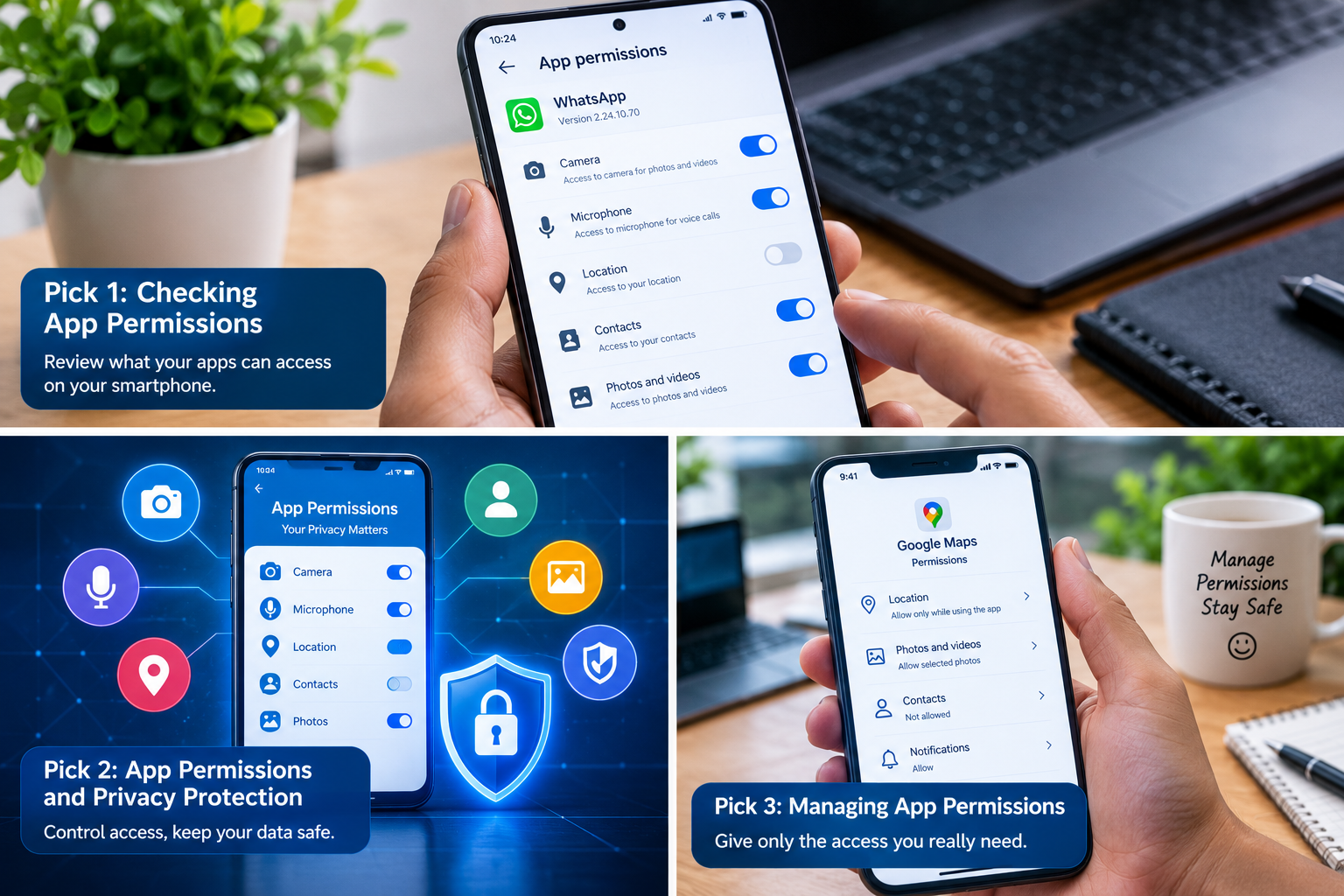
Pick 1: Smartphone App Permissions Settings

Image prompt: Create a realistic smartphone screen displaying an app permission dashboard with camera, microphone, location, contacts, and photo access controls. Show a person’s hand reviewing the settings in a clean, modern workspace with a professional mobile technology aesthetic.

Alt text: Smartphone app permissions settings for camera, microphone, and location.

Pick 2: App Permissions and Privacy Protection

Image prompt: Create a professional cybersecurity illustration of a smartphone surrounded by privacy symbols, including a shield, lock, location pin, camera, and microphone. Show permission toggles on the phone screen and use a polished blue-and-white technology style.

Alt text: App permissions help protect smartphone privacy and personal information.

Pick 3: Managing App Permissions Safely

Image prompt: Create a realistic smartphone privacy settings interface showing an application with location access set to while using the app and photo access limited to selected images. Include a hand reviewing permission options in a bright, modern setting.

Alt text: How to manage app permissions safely on a smartphone.

7. How to Manage App Permissions Safely

Regularly reviewing app permissions is a simple way to maintain better control over your phone. The following practices can help:

  • Review permissions regularly: Check which applications can access sensitive features and personal information.
  • Use limited access: Prefer options such as while using the app, selected photos, or approximate location when they meet your needs.
  • Remove unused applications: Uninstall apps you no longer need instead of leaving them installed indefinitely.
  • Check unusual requests: Question permissions that do not match an application’s purpose.
  • Update your phone: Install operating system and application updates from trusted sources.
  • Review privacy settings: Check notification previews, background location access, and other available controls.
  • Investigate unfamiliar apps: If you do not recognize an application, find out what it does before granting additional access.

On Android, permission controls are generally available through Settings and the Apps or Privacy sections. On iPhone, review Settings under Privacy & Security and the relevant app settings. Menu names and available controls vary by device and software version.

8. Comparison Table of App Permissions

The table below explains common permission types, their legitimate uses, and possible privacy concerns.

PermissionLegitimate usePotential concernSafer approach
CameraTaking photos and video callsUnnecessary camera accessAllow when needed
MicrophoneVoice calls and recordingUnnecessary audio accessLimit access to relevant apps
LocationMaps and navigationUnwanted location trackingUse approximate or while-in-use access
ContactsFinding people in messaging appsExposure of contact informationAllow only when necessary
PhotosEditing and sharing imagesAccess to private picturesSelect specific photos when possible
FilesOpening and saving documentsUnnecessary access to stored filesUse a file picker
NotificationsAlerts and remindersSensitive previews or unwanted messagesDisable unnecessary notifications

9. Graph: App Permissions and Privacy Priority

The following graph uses illustrative priority scores to show which permission categories may deserve closer review. These scores are educational examples, not measured statistics or a scientific risk ranking.

Permission categoryIllustrative review priority out of 5
Location5
Camera4
Microphone4
Contacts4
Photos4
Files4
Notifications2

Location, camera, microphone, contacts, photos, and files can all expose sensitive information depending on how they are used. Notifications may also reveal private information through message previews. Your actual risk depends on the application, its behavior, the permissions granted, and your personal needs.

Conclusion: Protect Privacy with App Permissions

App permissions help you decide how applications interact with your smartphone and personal information. Camera, microphone, location, contacts, photos, files, and notifications can all support useful features, but unnecessary access may create avoidable privacy risks.

The best approach is to review permission requests carefully, grant only the access required, and check your settings regularly. Pay particular attention to applications that request permissions unrelated to their main purpose.

Remember that permission settings are only one part of mobile security. Download apps from trusted sources, keep your phone updated, and investigate suspicious behavior rather than assuming every application is safe.

With a few simple checks, you can enjoy your favorite smartphone features while maintaining greater control over your privacy and security.

8 Powerful Passkey Security Benefits: Strong Protection & Hidden Risks

Introduction to Passkey Security Benefits

Passkey Security Benefits are becoming increasingly important as people look for safer and simpler ways to protect their online accounts. Traditional passwords can be stolen through phishing attacks, exposed in data breaches, or guessed when users choose weak combinations. Passkeys offer an alternative by using cryptographic technology to verify a user’s identity without requiring them to type a conventional password.

Passkeys can work with fingerprints, facial recognition, a device PIN, or another supported method of unlocking a device. They are designed to make account sign-ins easier while reducing several common password-related security risks. From email accounts and online shopping to digital workspaces and financial services, passkeys are becoming an important part of modern authentication.

However, passkeys are not completely risk-free. Device loss, account recovery problems, compromised devices, and confusion about synchronization can still create challenges. Understanding the major Passkey Security Benefits, along with their limitations, helps users decide when and how to adopt this technology.

New California privacy law may be a model for other states

Table of Contents

  1. What Are Passkeys?
  2. Eight Powerful Passkey Security Benefits
  3. Hidden Risks of Passkey Security
  4. Passkeys vs. Traditional Passwords
  5. Graph: Passkey Security Advantages
  6. How to Use Passkeys Safely
  7. The Future of Passkey Security Benefits
  8. Conclusion

What Are Passkeys?

Passkeys are digital credentials that use public-key cryptography to authenticate users. When a passkey is created, a related pair of cryptographic keys is used. The service stores the public key, while the corresponding private key remains protected by the user’s device or credential-management system.

During sign-in, the service sends a challenge that the passkey can answer using the private key. This allows the service to verify the credential without receiving a conventional password.

Users commonly unlock passkeys through a fingerprint, face recognition, a device PIN, or another supported device-authentication method. The biometric information generally stays on the device rather than being sent to the website as the passkey itself.

Depending on the platform, passkeys may be stored on a device, synchronized through a credential manager, or used across compatible devices. These differences matter when planning account recovery and device replacement.

Eight Powerful Passkey Security Benefits

1. Passkey Security Benefits Include Strong Phishing Resistance

One of the most important Passkey Security Benefits is protection against many common phishing attacks. Traditional passwords can be entered into fake websites that imitate legitimate services. Criminals can then use the stolen credentials to attempt account access.

Passkeys use cryptographic authentication that is associated with the legitimate website or service. A fake website generally cannot use a passkey created for a different website to complete the same authentication process.

How Passkeys Reduce Phishing Risks

Because users do not type a reusable password into a login form, there is less opportunity for a fraudulent page to steal that password. This can make passkeys a strong choice for email, social media, and other important accounts.

However, phishing resistance does not eliminate every online threat. Users must still watch for fraudulent recovery messages, malicious applications, and attempts to trick them into authorizing other actions.

Woman typing password on laptop for website security in home office

2. Passkey Security Benefits Include Fewer Password Problems

Remembering different passwords for dozens of websites can be difficult. Some users respond by reusing passwords, choosing predictable combinations, or storing credentials insecurely.

Passkeys reduce dependence on memorized passwords for services that support them. Users can authenticate through a supported device or credential manager instead of repeatedly typing secret text.

Why Passwordless Sign-In Can Be Easier

Passkeys can simplify everyday sign-ins because users may only need to unlock their device using an approved method. This is particularly helpful for people who regularly switch between online accounts.

Nevertheless, users should maintain secure access to their devices and understand how their passkeys are backed up or synchronized. Passwordless authentication still requires responsible account management.

3. Passkey Security Benefits Help Reduce Credential Theft

Passwords can be exposed through malicious software, deceptive websites, insecure storage, or data breaches. Once stolen, a password may be reused against other accounts.

Passkeys use public-key cryptography instead of transmitting a reusable password during the normal authentication process. The private key is protected by the device or credential-management system.

How Passkeys Protect Login Credentials

A service can verify authentication using the public key without storing the user’s private key as a conventional password. This reduces the risks associated with databases full of reusable passwords.

The security of the private key still matters. A compromised device, unsafe recovery process, or poorly secured credential account may create other routes to unauthorized access.

4. Passkey Security Benefits Can Improve Account Protection

Passkeys provide an authentication method that can help strengthen account security without requiring users to remember increasingly complicated passwords.

For important services, using passkeys can reduce reliance on passwords that may be guessed, reused, or stolen. This can be especially useful for email accounts because email often controls password resets for other services.

Protecting Important Accounts with Passkeys

Users should prioritize accounts that contain valuable information or control access to other accounts. Email, cloud storage, work services, and financial platforms are sensible places to check for passkey support.

Passkeys do not replace every security measure. Recovery options, device security, and account alerts still matter, especially when an account provides access to sensitive information.

5. Passkey Security Benefits Can Make Sign-Ins Faster

Traditional login processes may require users to remember a password, type it correctly, and sometimes enter an additional verification code.

With passkeys, authentication may involve selecting an account and unlocking a device with a fingerprint, face recognition, or PIN. The precise experience depends on the service and device.

Faster Authentication Without Repeated Password Entry

Simpler sign-in can reduce frustration and make secure authentication easier to adopt. This matters because security measures are more useful when people can use them consistently.

However, first-time setup, cross-device sign-in, and recovery can still require additional steps. Users should test the process before depending on it for essential accounts.

6. Passkey Security Benefits Support Modern Devices

Passkeys are supported across many modern operating systems, browsers, and online services. Depending on the platform, credentials may be available through a device’s credential manager or a compatible password-management application.

This flexibility allows users to authenticate across supported environments without manually sharing the private key with each website.

Using Passkeys Across Different Devices

Some credential systems synchronize passkeys across devices connected to the same account. Others may keep credentials on a specific device or support cross-device authentication through an approved process.

Before switching phones or computers, users should confirm how their passkeys will remain available. Compatibility and synchronization behavior can differ between platforms and services.

7. Passkey Security Benefits Can Reduce Repeated Verification Friction

Some password-based accounts require additional verification steps, particularly when a login looks unusual. Passkeys can provide strong authentication that may reduce the need for certain extra login challenges, depending on the service’s security policies.

This can create a smoother experience without requiring users to weaken their account protection.

Better Authentication for Everyday Online Work

People who use several online services for studying, freelancing, or business may appreciate a consistent authentication process. Passkeys can also help organizations reduce some password-reset and credential-management burdens.

Still, organizations may require additional checks for sensitive transactions or unfamiliar devices. Strong authentication does not mean every login should bypass other safeguards.

8. Passkey Security Benefits Can Support a More Secure Digital Future

Passkeys are part of a broader shift toward authentication methods that rely less on shared secrets. As more services support them, users may have additional ways to protect their accounts against password theft and phishing.

This technology can also support organizations that want to reduce their dependence on conventional passwords.

Why Passkeys Matter for Future Online Security

Wider adoption could make secure sign-in more convenient and reduce several common credential risks. The overall benefit will depend on implementation quality, recovery options, user education, and service compatibility.

Passkeys are not a complete replacement for every security control, but they are an important development in modern authentication.

Hidden Risks of Passkey Security

Device Loss and Account Recovery

A passkey may be stored on a particular device or synchronized through a supported credential manager. If users lose access to the device or the account that manages synchronized credentials, they may face difficulties signing in.

Before relying entirely on passkeys, review the service’s recovery process and keep your recovery email and other essential accounts secure. Follow the provider’s official instructions for replacing a lost device.

Compromised Devices and Credential Accounts

Passkeys can reduce phishing and password-theft risks, but they cannot guarantee that a compromised device is safe. Malware, unauthorized device access, or a compromised credential-manager account may create additional security problems.

Keep operating systems and browsers updated, use a strong device lock, and protect the account used to synchronize credentials.

Compatibility and Adoption Problems

Not every website supports passkeys, and some services may provide different experiences across browsers and devices. Users may still need passwords or other authentication methods for older services.

Before making a complete transition, check which important accounts support passkeys and whether you can sign in from your usual devices.

False Confidence in Passwordless Security

Passkeys are powerful, but they do not protect users from every form of fraud. Scammers may still attempt to steal recovery codes, take over email accounts, or persuade people to approve malicious transactions.

Users should continue to verify unusual requests, protect their devices, and enable available security notifications.

Passkeys vs. Traditional Passwords

FeaturePasskeysTraditional Passwords
Phishing resistanceStrong when correctly implementedVulnerable to fake login pages
MemorizationUsually unnecessaryRequired unless managed by software
Reuse riskAvoids conventional password reuseCommon if users repeat passwords
Sign-in experienceOften quick and device-basedRequires password entry
RecoveryDepends on device and serviceOften uses reset procedures
CompatibilityDepends on service and platformWidely supported
Main concernDevice and credential recoveryTheft, reuse, and weak passwords

Passkeys offer important advantages for authentication, especially against phishing. However, the best choice depends on service support, account recovery, and the user’s devices. Where available, passkeys are generally a strong option for protecting important accounts.

Graph: Passkey Security Advantages

The following chart uses illustrative scores out of 10 to compare potential advantages. These are explanatory ratings, not results from a controlled security study.

Security AdvantageIllustrative Score
Phishing resistance10
Reduced password reuse9
Easier sign-in8
Reduced password memorization9
Cross-device convenience7

These scores represent a general comparison of potential benefits rather than a guarantee about every passkey implementation. Actual security and convenience depend on the platform, service, and recovery arrangements.

How to Use Passkeys Safely

Start with Your Most Important Accounts

Begin with accounts that could create the greatest problems if compromised. Your primary email account is especially important because it may control password resets for other services. Consider cloud storage, work accounts, and financial services where passkeys are supported.

Protect Your Devices and Credential Manager

Use a strong device PIN or password, keep software updated, and enable the security features available on your device. If passkeys synchronize through a credential manager, protect that account with strong authentication and reliable recovery options.

Test Recovery Before You Need It

Understand how to regain access if your phone is lost, replaced, or damaged. Where supported, verify that your passkeys are available on another trusted device or through the provider’s documented recovery process.

A Practical Passkey Security Benefits Strategy

Choose a few important accounts, enable passkeys through their official security settings, and test sign-in on your normal devices. Keep your recovery details current and never share verification codes or account-recovery secrets with someone who contacts you unexpectedly.

The Future of Passkey Security Benefits

Passkeys are likely to become more common as websites, operating systems, and credential managers improve support for passwordless authentication. Wider adoption could make phishing-resistant sign-in easier for individuals and organizations.

At the same time, device recovery, cross-platform compatibility, and user education will remain important. Security systems must protect not only the initial login but also the processes used to recover accounts and add new devices.

For users, the most effective approach is to combine passkeys with secure devices, updated software, careful account recovery, and awareness of online scams.

Conclusion

Passkey Security Benefits include stronger resistance to many phishing attacks, reduced reliance on reusable passwords, simpler sign-ins, and improved protection against common credential theft. These advantages make passkeys an important option for securing modern online accounts.

However, passkeys are not risk-free. Lost devices, recovery problems, compromised accounts, and compatibility limitations can still create difficulties. Users should understand how their credentials are stored, protect their devices, and maintain reliable recovery methods.

By adopting passkeys thoughtfully and combining them with good security habits, individuals can make online authentication easier while reducing several important password-related risks.

7 Powerful Signs of a Fake Website: Stay Safe & Avoid Scams

Table of Contents: Signs of a Fake Website

  1. Introduction to Signs of a Fake Website
  2. Signs of a Fake Website in Suspicious URLs
  3. Signs of a Fake Website Through Unrealistic Offers
  4. Signs of a Fake Website in Payment Methods
  5. Signs of a Fake Website in Poor Design
  6. Signs of a Fake Website in Missing Contact Details
  7. Signs of a Fake Website in Reviews and Testimonials
  8. Signs of a Fake Website Through Security Warnings
  9. How to Check a Website Before Trusting It
  10. Conclusion: Stay Safe from Fake Websites

Introduction to Signs of a Fake Website

Signs of a Fake Website can help you identify online scams before you share personal information, enter payment details, or download suspicious files. Fake websites often imitate trusted businesses, online stores, banks, and popular services to make visitors believe they are using a legitimate platform. Some look professional, making it difficult to recognize the danger immediately.

ScamAdviser.com Website Checker | Catch Fake Sites Before You Pay

Learning to recognize these warning signs is an important step toward safer internet browsing. A suspicious website may use an unusual web address, advertise unbelievable discounts, display fake customer reviews, or pressure visitors to make quick decisions.

However, one warning sign alone does not always prove that a website is fraudulent. New businesses may have limited reviews, and legitimate websites can have design problems. The safest approach is to check several indicators, verify the website through independent sources, and avoid sharing sensitive information until you are confident that the site is genuine.

1. Signs of a Fake Website in Suspicious URLs

One of the first signs of a fake website is an unusual or misleading domain name. Scammers sometimes create addresses that resemble well-known brands but contain extra words, misspellings, or different domain endings.

For example, a fraudulent address might replace a letter in a company’s name or add words such as “secure-login” to make the page appear official. These small changes can be easy to overlook when someone is browsing quickly.

How to Check URLs for Signs of a Fake Website

Examine the complete web address before entering any information. Check the spelling of the domain and make sure it matches the official website you intended to visit. Be especially careful with links received through unexpected emails, text messages, or social media advertisements.

Deceptive Website Warning: Causes, Impact & Solutions

A padlock symbol or HTTPS connection does not guarantee that a website is legitimate. It indicates that the connection is encrypted, but scammers can also obtain HTTPS certificates.

Helpful tip: If a message claims to come from your bank or another important service, open the official app or type the known website address yourself instead of following the supplied link.

2. Signs of a Fake Website Through Unrealistic Offers

Extremely low prices and unbelievable promotions can be another warning sign. Fake online stores may advertise expensive electronics, designer products, or popular accessories at prices far below normal market levels.

These offers are designed to create excitement and encourage visitors to purchase before checking the seller’s credibility. Some fraudulent websites also display countdown timers or messages claiming that only a few items remain.

Why Unrealistic Discounts Are Signs of a Fake Website

A genuine business can offer discounts, especially during seasonal sales. However, an offer that appears unusually generous deserves additional investigation.

Compare prices with established retailers, check the seller’s reputation, and read the return and refund policies. Look for a verifiable business address and independent customer feedback.

Do not let urgency replace careful judgment. A genuine promotion should not require you to ignore basic safety checks.

3. Signs of a Fake Website in Payment Methods

Payment options can reveal important information about an online seller. Some fraudulent websites insist on irreversible payment methods, request direct transfers to unfamiliar personal accounts, or pressure customers to pay through unusual channels.

Once money has been transferred through certain payment methods, recovering it may be difficult. This is why checking payment arrangements before completing a purchase is essential.

Safe Payment Checks for Signs of a Fake Website

Before paying, confirm that the seller is genuine and review the available payment protections. Credit cards and reputable payment services may provide dispute procedures, although protection varies by provider, country, and transaction type.

Avoid sharing your banking password, one-time verification codes, or other authentication information with a seller. Legitimate merchants generally do not need your account password to process a purchase.

If a website demands immediate payment through an unfamiliar or irreversible method, stop and investigate before proceeding.

4. Signs of a Fake Website in Poor Design

A poorly designed website can sometimes indicate a problem, particularly when combined with other suspicious details. Fraudulent websites may contain copied logos, blurry images, broken links, inconsistent fonts, strange wording, or unfinished pages.

Some scammers copy entire websites to make their platforms appear trustworthy. As a result, professional design does not automatically prove that a business is genuine.

Website Quality Checks for Signs of a Fake Website

Look beyond appearance and examine the details. Check whether the company name remains consistent across the website, whether product descriptions make sense, and whether important pages work correctly.

Search for copied text or images when something seems suspicious. You can also compare the website with the official company’s known online presence.

Poor grammar or broken links are warning signs, not conclusive proof of fraud. Combine these observations with domain checks, independent reviews, and verified contact information.

5. Signs of a Fake Website in Missing Contact Details

Reliable businesses usually provide ways for customers to ask questions or resolve problems. Depending on the business, this might include a support email, telephone number, physical address, or clear customer service page.

A website that provides no meaningful contact information may be risky, especially if it requests payment or sensitive personal details.

Verify Business Details for Signs of a Fake Website

Check whether the listed business address exists and whether the company name matches independent business records where available. Look for clear shipping, refund, privacy, and cancellation policies.

Be cautious if the contact information belongs to an unrelated business or if the website provides only a generic form with no other details.

Keep in mind that small online businesses may operate without a public telephone number. Missing contact information becomes more concerning when combined with unrealistic offers, suspicious payment requests, or other inconsistencies.

6. Signs of a Fake Website in Reviews and Testimonials

Customer reviews can help you assess a business, but they are not always reliable. Scammers may publish invented testimonials, copy reviews from other companies, or create multiple accounts to make a website appear popular.

A page filled with perfect five-star reviews and little meaningful detail may deserve closer inspection.

How to Verify Reviews for Signs of a Fake Website

Search for the business name alongside terms such as “complaint,” “scam,” or “refund problems.” Look for independent reviews on established platforms rather than relying only on testimonials displayed on the seller’s own website.

Read both positive and negative experiences. Detailed reviews that describe specific purchases and realistic outcomes may provide more useful information than repeated comments containing generic praise.

No single review proves that a website is fraudulent. Focus on consistent patterns across several independent sources, and remember that reviews can also be manipulated to unfairly damage legitimate businesses.

7. Signs of a Fake Website Through Security Warnings

Fake websites may attempt to collect passwords, payment information, identity details, or other private data. Some may also encourage visitors to download malicious files or install suspicious browser extensions.

Browser security warnings should always be taken seriously. If your browser identifies a website as dangerous, do not ignore the warning simply because the page looks familiar.

Protect Your Information from Signs of a Fake Website

Use unique passwords for important accounts and enable multifactor authentication whenever possible. A password manager can help you recognize unexpected domains because it generally will not autofill credentials on a different website.

Never install software or browser extensions merely because an unfamiliar website tells you to do so. Download applications from trusted official sources, and keep your browser and operating system updated.

If you believe you have entered a password on a fraudulent website, visit the genuine service directly, change the affected password, and review your account activity. If you submitted payment information, contact your bank or payment provider promptly.

8. How to Check a Website Before Trusting It

Recognizing the signs of a fake website is easier when you follow a consistent verification process.

First, inspect the complete domain name and check for spelling differences. Next, search for independent information about the business, including complaints and credible reviews. Review the contact details, refund policy, and payment options before making a purchase.

You can also use reputable website reputation services, such as Google Safe Browsing’s site status tool, to check whether a website has been identified as unsafe. These tools are helpful but cannot guarantee that a site is legitimate, particularly if it is new or has not yet been reported.

For suspicious links, avoid opening them directly. If the link claims to come from a trusted organization, navigate to that organization’s official website independently.

Three Related Picture Ideas for Signs of a Fake Website

Pick 1: Signs of a Fake Website in a Suspicious URL

Image prompt: Create a realistic cybersecurity-themed image showing a laptop browser with a suspicious imitation web address, a warning symbol, and a magnifying glass inspecting the URL. Use a professional technology-blog style with a clean background and clear visual focus.

Alt text: Signs of a fake website in a suspicious URL.

Pick 2: Signs of a Fake Website in Online Shopping

Image prompt: Create a realistic online shopping scene showing an attractive but suspicious discount website on a laptop, with an unusually low price, a warning icon, and a shopper checking the seller’s credibility. Use a polished e-commerce cybersecurity illustration.

Alt text: Signs of a fake website in suspicious online shopping offers.

Pick 3: Signs of a Fake Website and Online Security

Image prompt: Create a professional cybersecurity illustration featuring a browser window, a shield and padlock, a suspicious link, and a person verifying website details before entering personal information. Use a modern blue technology aesthetic.

Alt text: Signs of a fake website and ways to stay safe online.

9. Comparison Table of Signs of a Fake Website

The following table summarizes common warning signs and practical ways to investigate them.

Warning signWhat to checkSafer action
Suspicious URLMisspellings or misleading domainsVisit the official website directly
Unrealistic offersPrices far below normal levelsCompare established sellers
Unusual paymentsIrreversible or unfamiliar methodsUse trusted payment options
Poor website qualityCopied content or broken pagesVerify the business independently
Missing contact detailsNo meaningful support informationCheck independent business records
Suspicious reviewsRepeated or generic testimonialsRead independent reviews
Security warningsBrowser alerts or unsafe downloadsLeave the site and verify its safety

10. Graph: Warning Signs of a Fake Website

The following graph uses an illustrative risk-priority score, not measured scam statistics. It demonstrates how a reader might prioritize further investigation when encountering several warning signs.

Warning signIllustrative priority score out of 5
Suspicious URL5
Unusual payment request5
Browser security warning5
Unrealistic offers4
Missing contact details3
Suspicious reviews3
Poor website design2

These scores are a simple educational example, not a validated fraud-detection system. A browser security warning or suspicious payment request deserves urgent attention, while design flaws alone are weaker evidence. Multiple warning signs together should prompt greater caution.

Conclusion: Recognize Signs of a Fake Website and Stay Safe

Learning the signs of a fake website can help you protect your money, accounts, and personal information. Suspicious URLs, unrealistic discounts, unusual payment requests, missing contact details, misleading reviews, and browser security warnings are all reasons to investigate before trusting a website.

Remember that no single indicator can confirm every scam, and a polished design or HTTPS connection does not prove that a business is legitimate. Verify important details independently, use trusted payment methods, and avoid sharing sensitive information with unverified websites.

By taking a few moments to check a website before clicking, downloading, signing in, or paying, you can make safer decisions and reduce your exposure to common online scams.

8 Powerful Cybersecurity & Privacy Secrets: Benefits & Risks

Introduction to Cybersecurity & Privacy

Cybersecurity & Privacy have become essential in a world where people use the internet for banking, shopping, education, communication, entertainment, and online work. Every day, users share personal information through websites, mobile applications, social media platforms, and digital services. Although these technologies make life easier, they can also expose users to data theft, phishing attacks, identity fraud, and unauthorized tracking 8 Powerful Cybersecurity & Privacy Secrets: Benefits & Risks.

Understanding Cybersecurity & Privacy can help individuals and businesses protect their information while enjoying the benefits of digital technology. Strong passwords, multifactor authentication, software updates, and careful online habits can reduce many common security risks. However, no security method offers complete protection, and even trusted services can experience data breaches.

This article explores eight powerful cybersecurity and privacy secrets, explaining how digital protection works, which benefits it offers, and what hidden risks users should understand in 2026.

Table of Contents

  1. Understanding Cybersecurity & Privacy
  2. Eight Powerful Cybersecurity & Privacy Secrets
  3. Benefits of Cybersecurity & Privacy
  4. Hidden Risks of Cybersecurity & Privacy
  5. Cybersecurity & Privacy Comparison Table
  6. How to Improve Cybersecurity & Privacy
  7. The Future of Cybersecurity & Privacy
  8. Conclusion

Understanding Cybersecurity & Privacy

Cybersecurity refers to the methods, technologies, and practices used to protect computers, networks, applications, and information from digital attacks. Privacy focuses on how personal information is collected, used, shared, stored, and controlled.

Although these concepts are closely connected, they are not identical. A website might have strong security but still collect more personal information than users expect. Similarly, a service might have a clear privacy policy but still suffer from a security vulnerability 8 Powerful Cybersecurity & Privacy Secrets: Benefits & Risks.

Woman typing password on laptop for website security in home office

Effective Cybersecurity & Privacy practices address both issues. They help prevent unauthorized access while encouraging responsible handling of personal information. Individuals should understand what they share online, while organizations should establish clear security controls and data-management policies.

Eight Powerful Cybersecurity & Privacy Secrets

1. Strong Passwords Provide an Essential First Defense

Passwords remain an important part of protecting online accounts. Weak or reused passwords can allow attackers to access multiple services if one account is compromised. A unique password for each important account reduces the damage that one exposed password can cause.

A password manager can help users create and store long, unique passwords without memorizing every combination. Instead of choosing predictable details such as birthdays or common words, users should rely on randomly generated passwords wherever possible 8 Powerful Cybersecurity & Privacy Secrets: Benefits & Risks.

Cybersecurity & Privacy Benefits of Unique Passwords

Unique passwords help separate accounts from one another. If a password leaks from an online store, it should not also unlock an email account or financial service 8 Powerful Cybersecurity & Privacy Secrets: Benefits & Risks.

However, password managers must themselves be protected with strong authentication. Users should also secure their recovery email accounts because password resets can become another route into important services.

2. Multifactor Authentication Adds Another Layer of Protection

Multifactor authentication, often called MFA, requires an additional verification method beyond a password. Depending on the service, this may involve an authenticator application, a security key, or another approved method.

MFA can make stolen passwords less useful to attackers because possessing the password alone may not be enough to access an account.

How MFA Strengthens Cybersecurity & Privacy

For important accounts, phishing-resistant security keys or passkeys can offer strong protection when supported. Authenticator applications are also useful, while SMS verification may be better than using a password alone when stronger options are unavailable 8 Powerful Cybersecurity & Privacy Secrets: Benefits & Risks.

MFA is not perfect. Attackers may attempt to trick users into approving fraudulent requests or exploit account-recovery weaknesses. Never approve an unexpected login request, and investigate unfamiliar verification messages.

3. Phishing Awareness Prevents Costly Mistakes

Phishing is a type of attack in which criminals impersonate trusted organizations or people to persuade victims to reveal information, open malicious attachments, or visit fraudulent websites.

Phishing detection cybersecurity alert warns person about suspicious emails, unverified senders, and malicious links on laptop, fraud prevention, email security, threat monitoring and data protection

Messages may imitate banks, delivery companies, employers, social media platforms, or technical-support teams. Some are poorly written, while others look convincing and use familiar logos or realistic language 8 Powerful Cybersecurity & Privacy Secrets: Benefits & Risks.

Cybersecurity & Privacy Protection Against Phishing

Before clicking a link, check the sender and the destination address. If a message claims that an account has an urgent problem, open the official application or type the organization’s known website address manually.

Never share passwords or verification codes with someone who contacts you unexpectedly. AI-generated messages can make scams more convincing, so checking the request itself is often more useful than judging its grammar 8 Powerful Cybersecurity & Privacy Secrets: Benefits & Risks.

4. Software Updates Close Important Security Gaps

Operating systems, browsers, mobile applications, and connected devices can contain security vulnerabilities. Developers release updates to fix known problems, improve functionality, and sometimes strengthen privacy controls.

Delaying important security updates can leave devices exposed to weaknesses that attackers already understand 8 Powerful Cybersecurity & Privacy Secrets: Benefits & Risks.

Cybersecurity & Privacy Advantages of Regular Updates

Automatic updates can reduce the chance of forgetting important patches. Users should also update routers, browser extensions, and other connected devices when security updates are available.

However, updates should come from official settings or trusted sources. Fake update pop-ups and fraudulent downloads can themselves contain malware. Unsupported devices may no longer receive necessary fixes, making replacement or restricted use worth considering.

5. Privacy Settings Reduce Unnecessary Data Sharing

Many applications request access to location, contacts, cameras, microphones, photos, or other personal information. Some permissions are necessary for a feature to work, but others may be optional.

Reviewing permissions helps users understand which applications can access sensitive information and whether that access is appropriate .

Cybersecurity & Privacy Controls for Personal Information

Users can review location sharing, advertising preferences, app permissions, account visibility, and data-retention settings. Restricting access to what an application genuinely needs can reduce unnecessary exposure.

Private browsing modes may prevent certain information from being stored locally, but they do not make users completely anonymous. Websites, network operators, employers, and internet providers may still be able to observe some activity depending on the circumstances .

6. Secure Networks Protect Everyday Online Activities

Public Wi-Fi is convenient in airports, cafés, hotels, and other shared spaces. However, users should be cautious about unfamiliar networks, fraudulent hotspots, and websites that do not protect information properly.

Modern encrypted websites provide important protection, but a secure connection does not automatically make every website trustworthy.

Using Network Security for Cybersecurity & Privacy

Keep device firewalls enabled, use current network equipment, and protect home Wi-Fi with modern encryption and a strong router administrator password. Avoid entering sensitive information into unfamiliar websites reached through unexpected links.

A reputable virtual private network, or VPN, can encrypt traffic between a device and the VPN provider. However, it does not make a user completely anonymous or prevent every form of phishing, tracking, or malware. Trust in the VPN provider still matters .

7. Data Minimization Reduces Privacy Risks

Data minimization means collecting or sharing only the information necessary for a specific purpose. The less unnecessary personal information that exists in an account or database, the less information may be exposed if that account or database is compromised.

Users can apply this principle by avoiding oversharing on social media, deleting unused accounts, and limiting the personal details they provide to unfamiliar services .

Cybersecurity & Privacy Through Smarter Data Sharing

Businesses can apply data minimization by limiting employee access, setting retention periods, and securely disposing of information that is no longer required 8 Powerful Cybersecurity & Privacy Secrets: Benefits & Risks.

Deleting unnecessary data does not guarantee complete removal from every backup or third-party system. Users should check service policies and available deletion controls rather than assuming that pressing a delete button immediately removes every copy.

8. Backups and Recovery Plans Reduce the Impact of Attacks

Cyberattacks can involve ransomware, account compromise, accidental deletion, or damage to devices. Even careful users can lose access to important information through technical failures or human mistakes.

Regular backups help people recover files without depending entirely on a compromised device.

Cybersecurity & Privacy Recovery Strategies

Keep backups of important files and use a combination of secure storage locations. An offline or otherwise isolated backup can be especially valuable against ransomware that attempts to encrypt connected files.

Protect backup accounts with strong authentication, and test whether the files can actually be restored. A backup that has never been tested may not be useful when an emergency occurs 8 Powerful Cybersecurity & Privacy Secrets: Benefits & Risks.

Benefits of Cybersecurity & Privacy

Better Protection Against Digital Threats

Strong security practices make many common attacks more difficult. Unique passwords, multifactor authentication, updates, and careful link checking can reduce opportunities for unauthorized access .

No individual measure stops every attack, so combining several protective layers is more effective than relying on one tool.

Greater Control Over Personal Information

Privacy settings and data minimization help users decide what information they share and which applications can access it. This can reduce unwanted exposure and make digital services easier to manage 8 Powerful Cybersecurity & Privacy Secrets: Benefits & Risks.

Improved Trust in Online Services

Businesses that handle information responsibly can build trust with customers and employees. Clear privacy practices, controlled access, and reliable security procedures also help organizations manage operational risks.

Better Recovery After Unexpected Problems

Backups, account-recovery methods, and incident-response plans help reduce disruption when something goes wrong. Preparing in advance is often easier than trying to recover important information during an emergency 8 Powerful Cybersecurity & Privacy Secrets: Benefits & Risks.

Hidden Risks of Cybersecurity & Privacy

False Confidence in Security Tools

Installing antivirus software, using a VPN, or enabling private browsing does not guarantee complete protection. Every tool has limitations, and users may remain vulnerable to scams, weak passwords, compromised accounts, or unsafe downloads.

Security tools should support good habits rather than replace them 8 Powerful Cybersecurity & Privacy Secrets: Benefits & Risks.

Data Collection by Legitimate Services

A service can operate legitimately while collecting information that users may not expect. Data may be shared with service providers or used for analytics, advertising, or personalization according to the applicable terms and settings 8 Powerful Cybersecurity & Privacy Secrets: Benefits & Risks.

Review privacy notices and permissions, especially when using services that handle financial, educational, professional, or personal information.

AI-Powered Scams and Impersonation

AI tools can help criminals generate convincing messages, imitate familiar writing styles, or create deceptive audio and images. This can make impersonation harder to recognize.

Verify unusual payment requests, account changes, and urgent instructions through a separate trusted communication channel. Do not rely on a familiar voice or realistic message alone.

The Cost and Complexity of Security

Advanced security products, business monitoring, and professional support can require money and technical knowledge. Too many complicated controls can also lead to mistakes if people do not understand how to use them 8 Powerful Cybersecurity & Privacy Secrets: Benefits & Risks.

Start with essential protections, improve them gradually, and select tools that match your actual needs.

Cybersecurity & Privacy Comparison Table

Security PracticeMain BenefitImportant Limitation
Unique passwordsReduces password reuse risksPasswords can still be stolen
Multifactor authenticationAdds another login barrierRecovery and approval attacks remain possible
Phishing awarenessHelps identify deceptive messagesSophisticated scams can look legitimate
Software updatesFixes known vulnerabilitiesUnsupported devices may lack patches
Privacy settingsLimits unnecessary accessSome collection happens at service level
Secure networksHelps protect connectionsDoes not eliminate all online threats
Data minimizationReduces unnecessary exposurePreviously shared copies may remain
Secure backupsSupports data recoveryBackups must be protected and tested

Graph: Cybersecurity & Privacy Protection Priorities

The following graph uses illustrative scores out of 10 to compare the importance of common protective practices. These are editorial examples, not measured security effectiveness or guarantees 8 Powerful Cybersecurity & Privacy Secrets: Benefits & Risks.

Protective PracticeIllustrative Priority
Strong unique passwords9
Multifactor authentication10
Phishing awareness10
Software updates9
Secure backups9

These scores are intended to help readers compare common security priorities. The best approach depends on the user’s devices, accounts, work, and specific risks.

How to Improve Cybersecurity & Privacy

Build a Simple Digital Security Routine

Start with your most important accounts, especially email, banking, and work services. Use unique passwords, enable multifactor authentication, install updates, and review account-recovery settings.

Next, examine app permissions and remove access that is no longer necessary. Avoid sharing sensitive information through unverified links or unfamiliar services 8 Powerful Cybersecurity & Privacy Secrets: Benefits & Risks.

Protect Important Data

Back up essential files, protect cloud accounts, and test recovery procedures. If you manage business information, establish clear access permissions and a process for reporting suspicious activity 8 Powerful Cybersecurity & Privacy Secrets: Benefits & Risks.

Review Security Regularly

Security is not a one-time task. New vulnerabilities, scams, applications, and devices can introduce fresh risks. Periodically review your settings and adjust your protections when your circumstances change 8 Powerful Cybersecurity & Privacy Secrets: Benefits & Risks.

A Practical Cybersecurity & Privacy Strategy

Focus on three questions: What information needs protection? Who can access it? How would you recover if something went wrong? Answering these questions helps you choose practical safeguards without spending money on unnecessary tools 8 Powerful Cybersecurity & Privacy Secrets: Benefits & Risks.

The Future of Cybersecurity & Privacy

Cybersecurity will continue to evolve as artificial intelligence, connected devices, cloud computing, and digital identity services become more widespread. AI may help security teams detect suspicious activity and investigate threats, but attackers can also use it to create more convincing scams.

Privacy technologies and stronger authentication methods may give users better ways to control personal information. At the same time, organizations will need to manage data responsibly and prepare for emerging security challenges.

The most reliable strategy combines technology, education, careful data handling, and human judgment. Staying informed and reviewing security practices regularly will remain important even as tools change.

Conclusion

Cybersecurity & Privacy are essential for protecting personal information, online accounts, and digital activities. Strong passwords, multifactor authentication, phishing awareness, software updates, privacy settings, secure networks, data minimization, and reliable backups can reduce many common risks 8 Powerful Cybersecurity & Privacy Secrets: Benefits & Risks.

However, no single tool guarantees complete protection. False confidence, excessive data collection, AI-powered scams, and poor recovery planning can still create serious problems. The best approach is to use multiple protective layers, understand their limitations, and review your digital habits regularly.

By making informed choices and protecting information before problems occur, individuals and businesses can enjoy the benefits of connected technology while reducing avoidable security and privacy risks 8 Powerful Cybersecurity & Privacy Secrets: Benefits & Risks.

7 Powerful AI Browser Assistants: Save Time & Avoid Risks

Introduction to AI Browser Assistants

AI Browser Assistants are changing how people search the internet, research information, summarize web pages, and complete everyday online tasks. Instead of manually opening dozens of tabs and copying information between websites, users can rely on AI-powered tools to organize information, answer questions, and assist with repetitive activities. These tools can save time, improve productivity, and make browsing more convenient.

Some AI browser assistants work through a browser sidebar or extension, while others can interact with websites and complete multiple steps when given permission. Their capabilities vary, so it is important to understand what a particular tool can actually do before using it.

However, AI browser assistants also introduce challenges. They may misunderstand instructions, provide inaccurate answers, or expose sensitive information if granted excessive access. Choosing reliable tools and reviewing their actions can help users enjoy the benefits while avoiding unnecessary risks.

How AI Browser Assistants Improve Productivity

Traditional browsing often requires users to perform each step manually. They search for information, open pages, compare details, write notes, and repeat the process across multiple websites. AI browser assistants can simplify parts of this workflow by helping users understand page content and organize their research.

For example, a student can ask an assistant to summarize a long educational article. A writer can request an outline based on several sources. A professional can compare information from multiple web pages without repeatedly switching between them.

The greatest benefit comes when users give clear instructions and verify the results. AI assistance can reduce repetitive work, but it does not eliminate the need for judgment, fact-checking, or careful decision-making.

Chrome Auto Browse arrives with Gemini AI in Google Chrome

AI Browser Assistants for Faster Research

AI browser assistants can help identify important points in lengthy pages, explain unfamiliar terms, and organize findings into readable summaries. Some tools can also use information from open tabs to provide context-aware answers.

This is particularly useful when researching technology, preparing assignments, comparing services, or planning a project. Nevertheless, users should check important facts against original sources because summaries can omit context or misinterpret information.

Seven Powerful Benefits of AI Browser Assistants

1. AI Browser Assistants Save Time

One major advantage of AI browser assistants is their ability to reduce repetitive browsing. Instead of manually extracting the same types of details from several pages, users can ask an assistant to summarize or compare the information.

This can make everyday research more efficient. However, the actual time saved depends on the task, the assistant’s capabilities, and how much correction its output requires.

2. AI Browser Assistants Simplify Online Research

Research often involves reading several articles, comparing claims, and identifying useful evidence. AI browser assistants can help organize these activities by summarizing sources and highlighting similarities or differences.

A useful approach is to request a summary that includes source links and uncertainties. Users should then open the original sources to confirm the most important claims instead of relying exclusively on AI-generated explanations.

3. AI Browser Assistants Support Writing

Writers can use AI browser assistants to brainstorm headlines, create outlines, improve grammar, and summarize background research. These features may help bloggers, students, and professionals develop ideas more efficiently.

For SEO writers, an assistant can also help organize a topic into relevant subheadings and suggest related search phrases. However, original analysis, accurate facts, and natural writing remain essential for creating valuable content.

4. AI Browser Assistants Help Compare Information

Comparing products, services, policies, or research findings can require considerable effort. Some AI browser assistants can extract relevant details from multiple pages and present them in a more organized format.

Users should still confirm specifications, prices, dates, and terms on the original websites. An assistant might overlook a condition or compare information that is not genuinely equivalent.

5. AI Browser Assistants Organize Browser Tabs

Many people keep numerous browser tabs open while studying or working. AI-supported browsing features may help group related tabs, summarize open pages, or maintain context across a research session.

Gemini in Chrome: When the Browser Becomes an AI Agent Runtime | Neuronex Transmission | Neuronex Automation

These features can reduce clutter and make it easier to return to unfinished work. Their availability depends on the browser and its installed features.

6. AI Browser Assistants Automate Repetitive Tasks

Some advanced AI browser assistants can perform multi-step actions, such as navigating websites, filling forms, gathering information, or preparing online bookings. For instance, Google’s Chrome documentation describes an auto-browse feature that can assist with certain multi-step tasks for eligible users.

Automation can be helpful, but users should review the plan and confirm sensitive actions. A browser agent may click the wrong control, misunderstand a website, or act on misleading page instructions.

7. AI Browser Assistants Improve Accessibility

AI browser assistants can explain complicated language, summarize long content, and help users navigate unfamiliar information. These capabilities may make online material easier to understand for people with different reading levels or learning preferences.

They can also help translate or rephrase content when supported by the tool. However, users should verify translations and technical explanations when precision matters.

Popular AI Browser Assistants and Their Features

Several products provide AI assistance within browsers or connect AI agents to browser activity. Their features, availability, pricing, and privacy controls differ.

Opera offers integrated AI features for asking questions about web pages and working with content in a browser sidebar. Microsoft Edge provides Copilot-related browsing assistance, while Google Chrome offers Gemini features for eligible users. Other AI-enabled browsers and extensions focus on research, summaries, or automated browsing.

Before choosing a product, check its current official documentation. Some advanced capabilities are restricted by country, account type, subscription, device, or gradual rollout.

AI Browser Assistants for Different Users

Students may benefit most from summarization and explanations. Bloggers may prefer research and writing support. Professionals may value tab organization and task automation, while privacy-conscious users may prioritize clear permission settings and transparent data policies.

There is no single best assistant for everyone. The right choice depends on the tasks you perform most frequently and the amount of access you are comfortable granting.

AI Browser Assistants for Research and Writing

AI browser assistants can be useful throughout the research and writing process. A user might collect background information, identify related questions, compare sources, and prepare an initial outline with assistance from AI.

For example, a technology blogger researching browser automation could ask an assistant to identify common use cases, list possible limitations, and suggest questions readers might ask. The writer should then verify the claims, add original insights, and cite reliable sources where appropriate.

Three Related Picture Ideas for AI Browser Assistants

Pick 1: AI Browser Assistants for Smart Research

Image prompt: Create a realistic modern computer screen showing an AI browser assistant summarizing several open research tabs. Include a clean browser interface, article previews, highlighted notes, and a professional workspace. Use a polished technology-editorial style.

Alt text: AI browser assistants helping users research information online.

Pick 2: AI Browser Assistants for Productivity

Image prompt: Create a realistic laptop displaying an AI browser sidebar beside multiple organized browser tabs. Show a digital workspace with a checklist, research notes, and summarized web content. Use a modern blue-and-white technology aesthetic with readable visual hierarchy.

Alt text: AI browser assistants improving browsing productivity.

Pick 3: AI Browser Assistants and Online Safety

Image prompt: Create a professional cybersecurity illustration of a browser window with an AI assistant, a privacy shield, permission controls, and a human reviewing an action before approval. Use realistic interface details and a clean, trustworthy editorial style.

Alt text: AI browser assistants with privacy and security controls.

AI Browser Assistants for Online Tasks

Advanced AI browser assistants can go beyond answering questions. Depending on the product, they may navigate pages, collect details, interact with forms, or help complete multi-step workflows.

For example, a user might request a comparison of several travel options or ask an assistant to gather appointment information. Before any final submission, purchase, or booking, the user should review the details and approve the action where required.

Limitations of AI Browser Assistants

Automation is not always reliable. Websites can change their layouts, display unexpected pop-ups, or require verification steps. AI systems may misunderstand page content or fail to complete a task correctly.

Treat automated results as work that needs review rather than assuming every task has been completed successfully.

Privacy Risks of AI Browser Assistants

AI browser assistants may process web-page content, browsing context, prompts, or other information needed to perform a task. The exact data collected depends on the product, its settings, and whether it uses cloud-based services.

Giving an assistant access to signed-in websites can create additional risks because those sites may contain personal messages, account details, or confidential documents.

How AI Browser Assistants Can Create Security Risks

A malicious webpage may contain instructions designed to manipulate an AI agent. This type of attack is commonly called prompt injection. If an assistant follows untrusted instructions, it could attempt unintended actions or expose information it can access.

Users should avoid granting broad permissions unnecessarily, inspect the assistant’s plan, and keep sensitive tasks under direct human supervision. Never assume that an AI feature is completely secure simply because it is integrated into a familiar browser.

How to Use AI Browser Assistants Safely

Follow these practical safety principles when using AI browser assistants:

  • Review permissions: Allow access only to the websites and information required for a task.
  • Verify important claims: Check factual answers against reliable original sources.
  • Protect confidential information: Avoid sharing passwords, payment details, or sensitive records unless a trusted service explicitly requires appropriate access.
  • Approve sensitive actions: Review messages, purchases, bookings, and form submissions before they are finalized.
  • Keep software updated: Install browser and extension updates from official sources.
  • Monitor automated tasks: Stop the assistant if it behaves unexpectedly or moves outside the requested task.

These steps do not eliminate every risk, but they help users maintain control over their browsing activities.

Comparison Table of AI Browser Assistants

The following table compares broad categories of browser AI tools. It is a practical guide rather than a performance ranking.

Assistant typeMain benefitMain limitationBest use
Browser sidebar AIQuick answers and summariesMay have limited task automationEveryday browsing
AI research assistantOrganizes information from sourcesCan miss context or evidenceResearch and learning
AI browser agentCan perform multi-step website actionsRequires careful supervisionRepetitive online workflows
Writing-focused browser AIHelps draft and rewrite textOutput may need substantial editingBlogging and writing
Privacy-focused browser AIMay provide clearer data controlsFeatures and processing varyPrivacy-conscious browsing

Graph: AI Browser Assistants and Productivity

To compare the usefulness of AI browser assistants, a simple graph can show the time required to complete the same research task manually and with AI assistance. The values below are illustrative only, not measured research results.

Research workflowIllustrative time
Manual research60 minutes
AI-assisted research40 minutes

These example values suggest a possible reduction of 20 minutes in this hypothetical task. Actual results will vary, and AI assistance may save less time—or take longer—when the task requires detailed verification or corrections.

The Future of AI Browser Assistants

AI browser assistants are moving toward more contextual and action-oriented browsing. Instead of simply answering questions, some systems can use page context, work across tabs, and assist with longer workflows.

Future improvements may make research more convenient, browser interfaces more accessible, and repetitive work easier to automate. At the same time, privacy, prompt injection, incorrect actions, and user consent will remain important challenges.

The most useful systems will need to balance capability with transparency and meaningful user control.

Conclusion: AI Browser Assistants Save Time and Require Care

AI browser assistants can make online research, writing, information comparison, and routine browsing more efficient. Their benefits are especially clear when they reduce repetitive tasks and help users understand complex information.

However, they are not perfect replacements for human judgment. Incorrect answers, excessive permissions, and unsafe automation can create real problems. Choose an assistant that fits your needs, verify important results, and review sensitive actions before approving them.

Used carefully, AI browser assistants can become valuable tools for a smarter and more productive browsing experience.

8 Powerful AI Note-Taking Tools: Benefits & Hidden Risks

AI Note-Taking Tools

AI Note-Taking Tools are changing how students, professionals, freelancers, and business owners capture information, summarize conversations, and organize important ideas. Instead of manually writing every detail during a meeting or lecture, users can employ artificial intelligence to summarize notes, identify key points, organize information, and turn discussions into useful action items. In 2026, AI-powered note-taking is becoming an increasingly practical way to manage busy schedules and reduce the time spent reviewing information.

However, not every tool is suitable for every user. Some AI Note-Taking Tools specialize in recording meetings, while others focus on personal knowledge management, handwritten notes, or searchable digital workspaces. Privacy concerns, transcription mistakes, subscription costs, and inaccurate summaries are important risks to consider before choosing a service.

Understanding the benefits and limitations of these tools can help you select a solution that improves productivity without compromising accuracy or personal information.

Table of Contents

  1. What Are AI Note-Taking Tools?
  2. Eight Powerful AI Note-Taking Tools
  3. Benefits of AI Note-Taking Tools
  4. Hidden Risks of AI Note-Taking Tools
  5. Comparison of AI Note-Taking Tools
  6. How to Choose AI Note-Taking Tools
  7. The Future of AI Note-Taking Tools
  8. Conclusion

What Are AI Note-Taking Tools?

AI Note-Taking Tools are applications that use artificial intelligence to help users capture, summarize, search, and organize information. Depending on the software, these applications may transcribe spoken conversations, generate meeting summaries, identify decisions, organize notes, or answer questions about saved information.

Get Real Time Meeting Insights: Transforming Collaboration with AI | by Isabelle Radcliffe | Medium

For example, a student can use an AI assistant to summarize a recorded lecture, while a freelancer can organize client meeting notes into a project plan. A business team may use meeting transcription to identify responsibilities and deadlines.

These capabilities vary across products. Some applications require users to upload recordings, while others can join online meetings or work directly within a digital workspace. AI-generated notes should always be reviewed because automated systems can misunderstand technical words, names, numbers, or important context.

Eight Powerful AI Note-Taking Tools

1. Notion AI for Organized Notes

Notion combines digital note-taking, document creation, databases, and project management. Its AI features can help users summarize information, improve writing, organize content, and work with information stored in their workspace, depending on the available plan and features.

For students, Notion can provide a structured place for lecture notes, revision materials, and assignment planning. Freelancers can use it to organize research, client information, and content calendars.

Why Notion AI Note-Taking Tools Are Useful

Notion is particularly helpful for people who want notes and projects in one place. However, its usefulness depends on maintaining an organized workspace. Users should review generated summaries and check permissions before storing confidential business information.

2. Otter.ai for Meeting Transcription

Otter.ai focuses on recording and transcribing spoken conversations in supported settings. It can help users review meetings, search transcripts, and identify important discussion points.

Professionals who attend frequent online meetings may benefit from having a written record instead of relying entirely on memory. Students may also find transcription useful when reviewing permitted lectures.

Otter.ai for AI Note-Taking Tools in Meetings

Transcription can save time, but audio quality, accents, background noise, and overlapping speech may affect accuracy. Always check important names, figures, commitments, and deadlines against the original recording or meeting notes.

3. Fireflies.ai for Meeting Summaries

Fireflies.ai is designed to assist with meeting recording, transcription, and conversation analysis across supported workflows. Its features can help teams search discussions, review summaries, and track decisions.

For businesses, it can make it easier to revisit conversations without listening to an entire recording again.

How Fireflies.ai Improves AI Note-Taking Tools

Its main benefit is making meeting information easier to search and review. Nevertheless, organizations should establish clear rules for recording consent, access permissions, and retention before introducing an AI meeting assistant.

4. Microsoft OneNote with AI Assistance

Microsoft OneNote provides a digital notebook for typed notes, handwritten content, drawings, and collected information. When compatible Microsoft AI features are available, users may also receive assistance with summarization and organizing information.

It can be useful for students who prefer separate notebooks for different subjects and professionals who need a flexible place for notes.

Microsoft OneNote and AI Note-Taking Tools for Study

OneNote is especially useful for combining different types of notes. The AI features available depend on the connected Microsoft services and subscription. Users should verify that any generated summary accurately reflects their original notes.

5. Google NotebookLM for Research Notes

NotebookLM helps users work with supplied source materials and explore information through summaries, questions, and other supported AI features. It can be useful for research projects involving documents, study materials, reports, and reference sources.

Rather than searching through every document manually, users can ask questions about their collected materials and investigate relevant passages.

Young collage student using computer and mobile device studying online.

Google NotebookLM as an AI Note-Taking Tool

NotebookLM is valuable when the goal is understanding a collection of sources. However, users should inspect the underlying material, confirm important quotations, and distinguish between what a source says and what the AI infers.

6. Fathom for Online Meeting Notes

Fathom is an AI meeting assistant designed to support meeting recording, transcription, and summaries in compatible workflows. It can help users review conversations and locate key moments without repeatedly watching an entire meeting.

Sales teams, consultants, and remote workers may find it useful when they need to revisit client discussions.

Fathom and AI Note-Taking Tools for Remote Work

Meeting summaries can simplify follow-ups, but users should confirm that recording is permitted and that participants understand how their information will be handled. Product features and integrations can vary.

7. Evernote for Searchable Digital Notes

Evernote is a digital note-taking application that helps users collect written notes, documents, and other information in a searchable workspace. Available AI-powered features can vary by subscription and product version.

It can suit people who need to keep research notes, personal reminders, reference documents, and project information accessible in one place.

Evernote for Everyday AI Note-Taking Tools

A searchable notebook is especially useful when information accumulates over months or years. Users should create a sensible naming system and review any automated organization to prevent important notes from becoming difficult to find.

8. Mem for Connected Knowledge Management

Mem is designed around capturing and connecting notes in a digital knowledge workspace, with AI-assisted features intended to make stored information easier to retrieve and use.

It may appeal to researchers, writers, and busy professionals who collect ideas across different projects and want to revisit them later.

Mem and AI Note-Taking Tools for Personal Knowledge

Connected notes can help users discover relationships between ideas. However, the quality of results depends on the information available, the product’s current capabilities, and the user’s organization habits. Check current availability and features before committing to a workflow.

Benefits of AI Note-Taking Tools

Saving Time with AI Note-Taking Tools

One major advantage is reducing the effort needed to turn conversations and rough notes into readable summaries. Instead of reviewing an entire meeting recording, a user may be able to start with a transcript and summary, then check the relevant sections.

The actual time saved depends on recording length, transcription quality, and the amount of editing required.

Improving Study and Revision

Students can use AI Note-Taking Tools to reorganize lecture notes, create practice questions, and identify topics that need further revision. Searchable notes also make it easier to revisit material before examinations.

AI summaries should complement active learning rather than replace it. Explaining concepts independently and practising questions remain important for understanding.

Better Meeting Follow-Ups

Businesses can use structured notes to identify decisions, responsibilities, and deadlines. When reviewed by a participant, these notes can support clearer follow-up messages and reduce confusion about agreed tasks.

Making Research Easier

Researchers and writers often collect information from many sources. Search, summarization, and source-based question answering can help them locate useful material faster. Important claims should still be verified against original documents.

Hidden Risks of AI Note-Taking Tools

Privacy and Recording Consent

Meeting recordings and transcripts may contain personal conversations, client details, financial information, or confidential plans. Uploading such information without appropriate permission can create privacy and compliance problems.

Before recording, check applicable laws and workplace policies, inform participants when required, and review the application’s privacy and retention settings.

Incorrect Transcriptions and Summaries

AI systems can mishear names, omit qualifications, confuse speakers, or turn uncertain statements into confident summaries. A small mistake can have serious consequences if it changes a deadline, decision, or financial figure.

Always review important notes against the original conversation or source material.

Subscription Costs and Feature Limits

Some applications offer free tiers, while advanced transcription, integrations, storage, and AI features may require payment. Limits can change over time.

Compare the features you actually need rather than paying for a large package before testing whether it improves your workflow.

Overdependence on Automated Notes

Relying entirely on automated summaries can cause users to miss context or remember less of what they heard. During important conversations, actively participating and recording your own key observations can improve understanding.

Comparison Table of AI Note-Taking Tools

The following comparison focuses on typical use cases. Exact features, prices, and integrations depend on the current product version and subscription.

ToolMain PurposeBest ForImportant Consideration
Notion AINotes and workspace organizationStudents and teamsWorkspace organization
Otter.aiSpeech transcriptionMeetings and lecturesTranscription accuracy
Fireflies.aiMeeting summariesBusiness teamsRecording permissions
Microsoft OneNoteDigital notebooksStudents and professionalsAI features vary
NotebookLMSource-based researchResearchers and studentsVerify original sources
FathomMeeting summariesRemote workersConsent and integrations
EvernoteSearchable note storagePersonal and professional notesPlan limitations
MemConnected knowledge managementWriters and researchersFeature availability

Graph: Illustrative Benefits of AI Note-Taking Tools

The following example uses hypothetical scores out of 10 to compare potential benefits. These are illustrative ratings, not independently measured product results.

Potential BenefitIllustrative Score
Faster information review9
Easier note searching8
Meeting follow-up support8
Study organization8
Reduced manual transcription9

These scores describe possible benefits of AI-assisted note-taking in general. Results differ by tool, user habits, and task complexity, and no application guarantees these outcomes.

How to Choose AI Note-Taking Tools

Identify Your Main Need for AI Note-Taking Tools

Start by deciding whether you primarily need meeting transcription, lecture summaries, research organization, handwritten notes, or a searchable personal knowledge base. Choosing a tool based on one clear need makes comparisons easier.

Check Privacy and Compatibility

Review the application’s data policies, recording permissions, supported integrations, and subscription requirements. For confidential work, confirm that its security and retention controls meet your needs.

Test Accuracy Before Daily Use

Try a short recording or a small collection of notes. Compare the generated output with the original material and check how much correction is needed.

A Practical Test for AI Note-Taking Tools

Evaluate three things: accuracy, time saved, and ease of use. The best tool is not necessarily the one with the most features; it is the one that reliably solves your specific problem without creating extra work.

The Future of AI Note-Taking Tools

AI Note-Taking Tools may become more effective at connecting notes, summarizing long projects, identifying recurring themes, and helping users retrieve information across supported applications. Improved integrations could make it easier to move from a meeting summary to a task list or project document.

At the same time, stronger automation will make privacy, accuracy, and transparent data handling increasingly important. Users will need to understand what information is recorded, where it is stored, and who can access it.

The most useful approach is to combine AI assistance with human judgment. Let technology handle repetitive organization while people remain responsible for reviewing important details and making decisions.

Conclusion: Choosing the Right AI Note-Taking Tools

AI Note-Taking Tools can help students study, professionals review meetings, and researchers organize information more efficiently. Notion AI, Otter.ai, Fireflies.ai, Microsoft OneNote, NotebookLM, Fathom, Evernote, and Mem serve different purposes, so the right choice depends on your workflow and priorities.

Before choosing a tool, compare its features, test its accuracy, and understand its privacy settings. Use AI-generated notes as a helpful starting point rather than an unquestionable record. With careful selection and regular review, AI note-taking can make daily work more organized while keeping its hidden risks under control.

7 Powerful Ways to Run AI Models Locally: Boost Privacy & Risks

Table of Contents: Run AI Models Locally

  1. Introduction to Run AI Models Locally
  2. Why Run AI Models Locally for Better Privacy
  3. Choose Lightweight Tools to Run AI Models Locally
  4. Use Ollama to Run AI Models Locally
  5. Run AI Models Locally with LM Studio
  6. Use Hardware Efficiently to Run AI Models Locally
  7. Improve Security When You Run AI Models Locally
  8. Benefits and Risks of Run AI Models Locally
  9. Comparison Table for Run AI Models Locally
  10. Conclusion: Run AI Models Locally with Confidence

Introduction to Run AI Models Locally

Run AI Models Locally is becoming an attractive option for people who want to use artificial intelligence without relying entirely on cloud-based services. Instead of sending every prompt to an online server, you can install a compatible AI model on your own computer and process many requests directly on your device. This approach can improve privacy, reduce dependence on subscriptions, and make AI tools available when your internet connection is unreliable.

However, local AI is not perfect. Performance depends on your computer’s memory, processor, graphics hardware, and the size of the model you choose. Some models also require significant storage and technical configuration. Understanding these factors can help you get useful results without spending money unnecessarily.

This guide explains practical ways to run AI models locally, introduces beginner-friendly tools, and explores the benefits and risks you should understand before getting started.

Qwen 3.5 9B Review: Alibaba's Open Source Model Tested

Why Run AI Models Locally for Better Privacy

One of the biggest reasons to run AI models locally is greater control over your information. When a compatible model operates entirely on your computer, your prompts and documents generally do not need to be sent to an external AI service for inference.

This can be helpful when summarizing personal notes, drafting private documents, experimenting with code, or organizing information stored on your device. Local processing can also reduce dependence on cloud availability and usage limits.

Nevertheless, local AI does not automatically guarantee complete privacy. An application may connect to the internet for updates, model downloads, telemetry, or optional online features. Review the application’s privacy settings and network behavior if confidentiality is important.

How Run AI Models Locally Supports Data Control

Local AI gives you more direct control over where your prompts and files are processed. You can choose your software, decide which models to install, and manage stored conversations on your own device.

For sensitive work, download software from trusted official sources and avoid feeding confidential information into unfamiliar tools. These simple precautions can help you benefit from local processing while reducing avoidable privacy risks.

Choose Lightweight Tools to Run AI Models Locally

Choosing an appropriate model is one of the most important steps in a successful local AI setup. Smaller models generally require fewer resources and can respond faster on modest computers. Larger models may provide stronger reasoning or more detailed responses, but they can demand substantially more memory and processing power.

Quantized models are often useful for beginners. Quantization reduces the numerical precision used to represent model weights, which can lower memory requirements. Depending on the model and quantization method, some accuracy or response quality may be sacrificed.

Find the Right Model to Run AI Models Locally

Start with a small, well-documented model that suits your task. A lightweight language model may be enough for basic writing, simple explanations, or everyday coding assistance. Specialized models may work better for particular tasks, such as programming or multilingual text.

Check the model’s license, hardware requirements, supported languages, and download size before installing it. Avoid assuming that every model is suitable for commercial use or every type of content.

Use Ollama to Run AI Models Locally

Ollama is a popular tool for downloading and running supported language models on personal computers. It provides a command-line interface and can make experimenting with local models more straightforward than manually configuring every component.

After installing Ollama from its official website, select a model that is compatible with your computer. The basic workflow is to download a model and launch it through the command line. For example, a command such as ollama run llama3.2 can launch that model if the relevant model is available through your installed Ollama setup.

Model names and availability can change, so check the current official documentation before following a specific command. Download sizes and resource requirements also vary.

Improve Your Workflow When You Run AI Models Locally

Once your model is working, test it with a few ordinary prompts. Ask it to summarize a short paragraph, explain a technical concept, or draft a simple email. These tests help you understand its strengths and limitations before relying on it for more demanding work.

Keep your software updated, use trusted model sources, and avoid exposing a local model server to the public internet without appropriate security controls.

Run AI Models Locally with LM Studio

LM Studio offers a graphical interface for discovering, downloading, and running supported local language models. It can be a convenient alternative for people who prefer menus and buttons instead of typing commands.

The usual process involves installing the application, finding a compatible model, downloading it, and loading it for local conversations. The interface helps users inspect model options and experiment with settings without building an entire workflow from scratch.

What Is a Desktop AI Agent? The Definitive Guide (2026) | Dume.ai

Simplify Model Selection to Run AI Models Locally

Before downloading a model, check its recommended memory requirements and file size. If your computer has limited RAM, begin with a smaller model or a more heavily quantized version.

Use short prompts initially and monitor system performance. If the application becomes unresponsive or your computer starts running out of memory, unload the model and select a lighter alternative. This gradual approach makes troubleshooting easier and reduces wasted time.

Use Hardware Efficiently to Run AI Models Locally

Your hardware has a major influence on the quality of your local AI experience. System RAM helps hold model data, while a compatible GPU with sufficient video memory can accelerate inference. CPU-only operation is also possible with many models, although generation may be slower.

You do not necessarily need an expensive workstation. A modest computer can handle certain smaller models, depending on its specifications and the software being used. The important step is matching model requirements to your available resources.

Optimize Memory When You Run AI Models Locally

Close unnecessary applications before loading a model. Choose a smaller model if your system struggles with memory usage, and ensure you have enough free storage for downloads and supporting files.

If you plan to upgrade your computer, evaluate RAM capacity and GPU memory against the models you actually intend to use. Research compatibility before buying new hardware rather than assuming that a powerful graphics card will solve every limitation.

Improve Security When You Run AI Models Locally

Running a model on your own computer can reduce the amount of information shared with cloud providers, but it introduces responsibilities of its own. Malicious downloads, insecure plugins, exposed network ports, and unsafe scripts can create security problems.

Download applications and model files from trusted sources. Keep your operating system and AI software updated, and review permissions before installing extensions or connecting external tools.

Avoid Common Risks When You Run AI Models Locally

Do not assume that a local AI model produces accurate or safe answers simply because it runs offline. It may invent facts, generate flawed code, or provide outdated information. Verify important claims and test generated code before using it in a real project.

Be cautious with commands suggested by AI tools. Never execute unfamiliar scripts with administrator privileges without understanding what they do. If you use a local model for work, maintain backups and follow your organization’s data-handling rules.

Benefits and Risks of Run AI Models Locally

The benefits of local AI include greater control over data processing, offline access for supported tasks, customization, and the ability to experiment without paying for every cloud request. Once downloaded, a model may be usable without an ongoing inference subscription, although electricity, hardware, storage, and software costs still matter.

The disadvantages include setup effort, hardware limitations, maintenance, and potentially lower performance than advanced cloud models. Some local applications also offer fewer integrated features than hosted services.

Three Related Picture Ideas for Run AI Models Locally

Picture 1: Run AI Models Locally on a Personal Computer

Show a realistic desktop computer running a local AI assistant, with a clean interface, a small model visualization, and documents stored on the device. Use a modern workspace, natural lighting, and a professional technology-blog aesthetic. Avoid fake brand logos and unreadable text.

Suggested alt text: Run AI models locally on a personal computer.

Picture 2: Run AI Models Locally for Privacy Protection

Create a realistic conceptual image of a laptop processing AI requests locally, with a subtle shield symbol and private documents remaining on the device. Place a cloud icon in the background to represent the alternative of remote processing. Use a clean, trustworthy cybersecurity style.

Suggested alt text: Run AI models locally to improve data privacy.

Picture 3: Run AI Models Locally with Efficient Hardware

Illustrate a computer workstation with a processor, graphics card, RAM modules, and a local AI interface. Use a polished, realistic technology editorial style to communicate the relationship between hardware resources and model performance.

Suggested alt text: Hardware components used to run AI models locally.

Comparison Table for Run AI Models Locally

The following table provides a general comparison of common local AI approaches. Actual performance depends on the computer, model, settings, and workload.

ApproachMain advantageMain limitationBest for
OllamaConvenient command-line workflowRequires some command-line familiarityDevelopers and experimenters
LM StudioGraphical model managementUses local storage and system resourcesBeginners and desktop users
Small quantized modelsLower memory requirementsMay reduce response qualityComputers with limited resources
Larger local modelsPotentially stronger capabilitiesHigher hardware requirementsPowerful computers and advanced users
Cloud AI servicesAccess to hosted models without local installationInternet and provider dependenceUsers needing advanced hosted features

Conclusion: Run AI Models Locally with Confidence

Learning to run AI models locally can give you more control over your AI workflow, improve privacy in suitable setups, and reduce dependence on cloud-based services. Tools such as Ollama and LM Studio make experimentation more accessible, while lightweight and quantized models help users work within hardware limits.

The smartest approach is to begin with a small model, test it on everyday tasks, and upgrade only when your needs justify the additional resources. Protect your computer by downloading trusted software, reviewing network access, and verifying important AI-generated information.

Local AI still has limitations, but careful model selection and sensible security practices can make it a practical option for learning, writing, coding, and personal experimentation. With the right setup, you can explore the advantages of artificial intelligence while maintaining greater control over your own computing environment.

8 Powerful AI Agent Tools for Daily Work: Benefits & Hidden Risks

AI Agent Tools for Daily Work are changing how people manage tasks, organize information, conduct research, communicate with customers, and complete repetitive activities. Unlike traditional software that follows simple commands, AI agents can often understand goals, plan multiple steps, use connected tools, and help complete tasks with less manual effort. In 2026, these technologies are becoming increasingly useful for freelancers, students, small businesses, content creators, and remote workers who want to improve productivity without increasing their workload.

However, choosing the right AI agent is not always easy. Some tools are excellent at research, while others are better at automation, writing, scheduling, or connecting different applications. Privacy concerns, inaccurate results, unexpected actions, and subscription costs are also important considerations. Understanding these benefits and limitations can help users select AI Agent Tools for Daily Work that genuinely support their goals.

Table of Contents

  1. What Are AI Agent Tools for Daily Work?
  2. Eight Powerful AI Agent Tools for Daily Work
  3. Benefits of AI Agent Tools for Daily Work
  4. Hidden Risks of AI Agent Tools for Daily Work
  5. Comparison Table of AI Agent Tools for Daily Work
  6. How to Choose AI Agent Tools for Daily Work
  7. Future of AI Agent Tools for Daily Work
  8. Conclusion

What Are AI Agent Tools for Daily Work?

AI agents are software systems that use artificial intelligence to work toward a specific goal. Depending on their design and permissions, they may break a request into smaller tasks, search for information, draft documents, interact with applications, or perform actions through connected services.

Top 12 B2B AI Automation Platforms to Watch in 2026

For example, a traditional writing assistant might suggest a paragraph when asked. An AI agent could potentially research a topic, organize the findings, prepare a draft, and create a checklist for reviewing it. The exact abilities depend on the product, available integrations, and user permissions.

AI Agent Tools for Daily Work are especially valuable when a task involves several connected steps. Nevertheless, they do not guarantee accurate information or completely independent work. Human review remains essential for important decisions and external actions.

Eight Powerful AI Agent Tools for Daily Work

1. ChatGPT for Daily Research and Productivity

ChatGPT can help users brainstorm ideas, explain complicated subjects, summarize provided information, draft articles, organize projects, and work through multi-step tasks. Depending on the plan and enabled features, it can also work with files, use connected tools, and help produce structured deliverables.

For content creators, it can support keyword brainstorming, article outlines, introductions, descriptions, and editorial planning. Students can use it to understand difficult concepts and practise solving problems.

Why ChatGPT Is Useful Among AI Agent Tools for Daily Work

Its flexibility makes it suitable for many different tasks without requiring a separate application for every activity. Users should still fact-check research, review generated content, and avoid sharing sensitive information unnecessarily.

2. Zapier for Workflow Automation

Zapier connects compatible applications through automated workflows. For example, a business might configure a workflow to send a notification when a form is submitted or create a task when a new record appears in a connected service.

Its automation capabilities can reduce repetitive copying and pasting. Some available features also support AI-powered workflows and agents, depending on the current plan.

How Zapier AI Agent Tools for Daily Work Save Time

The main advantage is consistency. Once an appropriate workflow is configured, it can perform recurring steps according to its rules. However, poorly configured automations may send incorrect information or trigger unwanted actions, so testing and monitoring are important.

AI Ethics and Data Privacy Explained (2026 Guide) | Shwe Cloud - Myanmar Social Network

3. Microsoft Copilot for Office Productivity

Microsoft Copilot can assist with tasks across supported Microsoft applications and services. Depending on the product and subscription, users may receive help drafting documents, summarizing meetings, analyzing information, or preparing presentations.

It is particularly relevant to professionals who already use Microsoft 365 for daily work.

Microsoft Copilot for Daily Work and Business Tasks

Its value comes from working within an existing productivity environment. Availability and capabilities differ across applications, accounts, and plans. Users should review sharing permissions and organizational data policies before enabling connected features.

4. Google Gemini for Research and Workspace Tasks

Google Gemini can assist with brainstorming, writing, summarization, explanation, and other information-based tasks. Certain versions and plans offer integrations with supported Google services.

Students, freelancers, and teams already using Google’s ecosystem may find it convenient for their everyday workflows.

Google Gemini as One of the AI Agent Tools for Daily Work

Gemini can help turn rough notes into organized material and support the preparation of emails, plans, and summaries. Users should verify factual claims and check which integrations are enabled before relying on it for sensitive work.

5. Claude for Writing and Document Analysis

Claude is an AI assistant that can help draft, revise, analyze, and organize text. It can be useful when a task involves long documents, structured writing, comparing information, or refining a detailed explanation.

For researchers and content creators, it may support the process of turning extensive notes into a coherent draft.

Claude for Complex Daily Work

Claude’s usefulness depends on the model, available tools, and task requirements. It should not be treated as a substitute for original sources, expert review, or human judgment, especially when the output contains technical or factual claims.

6. Perplexity for AI-Assisted Research

Perplexity is designed around answering questions with web-based research and source references. It can help users discover relevant pages, explore unfamiliar subjects, and identify material for further reading.

This can be useful when preparing an article, researching a product category, or investigating a new technology.

Perplexity AI Agent Tools for Daily Work

Its research-oriented approach can make source discovery easier, but citations do not automatically guarantee that every statement is correct. Open the original sources, check publication dates, and compare important claims before using the findings.

7. Notion AI for Notes and Project Organization

Notion combines workspace and project-management features, while its AI capabilities can assist with writing, summarizing, and organizing information. Depending on available features, it can help users turn scattered notes into more structured documents and plans.

It may be useful for freelancers maintaining content calendars, students organizing study notes, and teams tracking project information.

Organizing Projects with Notion AI

The biggest benefit is keeping related information together. However, a well-organized workspace still requires accurate records, sensible access controls, and regular updates. AI-generated summaries should be checked against the original notes.

8. n8n for Custom AI Workflows

n8n is a workflow automation platform that supports integrations and configurable AI workflows. It can be useful for technically confident users who want to connect services, process data, or build customized automations.

For example, a user might design a workflow that receives a form submission, processes its contents, and creates a review task in another application.

Custom AI Agent Tools for Daily Work with n8n

Its flexibility is attractive to developers and small businesses, but advanced workflows may require technical knowledge, testing, and maintenance. Credentials must be stored securely, and every automated action should have appropriate safeguards.

Benefits of AI Agent Tools for Daily Work

Saving Time on Repetitive Tasks

One of the clearest benefits of AI Agent Tools for Daily Work is reducing the manual effort required for routine activities. Drafting a first version of an email, categorizing information, preparing meeting summaries, and transferring data between applications can sometimes be automated or accelerated.

The amount of time saved depends on task complexity, the quality of the setup, and the amount of human review required.

Improving Productivity and Focus

AI agents can help users move from one task to the next by organizing information and suggesting practical steps. Rather than spending a long time arranging notes, a user may be able to start with a structured outline and focus on improving the final result.

Supporting Small Businesses and Freelancers

Small businesses often have limited staff and budgets. AI-assisted tools can support customer-service drafts, content planning, internal documentation, and routine administrative work. Freelancers may use them to organize projects and prepare early drafts.

These tools are most effective when they support a clear process instead of adding unnecessary complexity.

Making Information Easier to Manage

Research assistants and document tools can help users find, summarize, and organize large amounts of information. This can make unfamiliar topics easier to explore, although important conclusions must still be checked against reliable sources.

Hidden Risks of AI Agent Tools for Daily Work

Inaccurate Information and Hallucinations

AI tools can generate convincing but incorrect answers, misunderstand instructions, or misinterpret source material. An agent that carries an error through several steps can make the problem harder to notice.

Users should verify important facts, inspect original sources, and review outputs before publishing or sharing them.

Privacy and Data Security

Connected tools may receive access to documents, messages, files, or business systems. Excessive permissions can expose more information than necessary.

Before connecting an AI agent, review its privacy terms, access permissions, retention settings, and organizational policies. Use the minimum permissions required for the task.

Unintended Automated Actions

An automation can send the wrong email, update an incorrect record, or repeat an action unexpectedly. These problems become more serious when an agent can access external accounts or modify important data.

Use approval steps for sensitive actions, test workflows with sample information, and maintain logs where appropriate.

Subscription Costs and Overdependence

Paid plans, usage limits, integrations, and maintenance can make AI workflows more expensive than expected. Users may also become overly dependent on generated answers and lose opportunities to develop their own skills.

A practical approach is to start with one low-risk task, measure its actual benefit, and expand only when the results justify the cost.

Comparison Table of AI Agent Tools for Daily Work

The following table compares common use cases rather than ranking every product feature. Exact capabilities, pricing, and integrations may change by plan and over time.

ToolMain UseBest FitImportant Limitation
ChatGPTResearch and general tasksStudents and creatorsRequires fact-checking
ZapierConnecting applicationsSmall businessesWorkflow errors need monitoring
Microsoft CopilotOffice productivityMicrosoft 365 usersFeatures vary by plan
Google GeminiWriting and Google workflowsGoogle usersIntegrations vary
ClaudeLong-form writing and analysisWriters and researchersOutputs need review
PerplexityWeb research and sourcesResearchers and bloggersSources need verification
Notion AINotes and project organizationTeams and freelancersWorkspace quality matters
n8nCustom automationTechnical usersSetup and maintenance can be complex

Graph: Illustrative Daily Time-Saving Potential

The graph below uses hypothetical estimates to show how much time a person might save on selected recurring tasks. These figures are examples, not measured results or guarantees for any specific tool.

Daily TaskIllustrative Time Saved
Drafting routine emails15 minutes
Summarizing documents20 minutes
Organizing project notes10 minutes
Connecting repetitive workflows25 minutes
Preparing research outlines20 minutes

These estimates add up to 90 minutes across the example tasks, but the activities may not occur every day and the savings can overlap. Actual results depend on workload, accuracy, setup time, and review requirements.

How to Choose AI Agent Tools for Daily Work

Identify Your Most Repetitive Task

Start by identifying a task that consumes time every week. This might be preparing article outlines, organizing research, summarizing meetings, or moving information between applications. A clear objective makes it easier to determine whether an AI tool is useful.

Check Compatibility and Permissions

Choose tools that work with your existing applications. Review integration requirements and ensure that the agent receives only the access it needs. For business data, follow your organization’s security and compliance policies.

Test Accuracy Before Scaling

Try the tool with a small, low-risk task. Compare its output with your normal process and check whether the time saved is greater than the time spent correcting mistakes.

A Practical Evaluation Method for AI Agent Tools for Daily Work

Evaluate each tool using three criteria: time saved, output quality, and risk. A tool that saves ten minutes but creates twenty minutes of corrections is not an effective solution. Keep the workflow only when it produces a clear net benefit.

Future of AI Agent Tools for Daily Work

AI agents are likely to become more integrated with everyday software, making it easier to coordinate information across multiple applications. Future systems may offer more personalized workflows, improved planning, and better ways to supervise multi-step tasks.

However, greater autonomy also increases the importance of reliable permissions, transparent actions, secure integrations, and human approval for high-impact decisions. Businesses will need to evaluate not only what an agent can do but also how reliably and safely it performs.

For individuals and small teams, the best strategy is to learn one useful workflow at a time. Understanding the underlying process will remain valuable even as individual tools change.

Conclusion

AI Agent Tools for Daily Work can help people research topics, organize projects, prepare documents, and automate repetitive activities. ChatGPT, Zapier, Microsoft Copilot, Google Gemini, Claude, Perplexity, Notion AI, and n8n serve different needs, so the right choice depends on a user’s workflow, budget, technical skills, and security requirements.

The most effective approach is not to automate everything. Begin with a clearly defined task, test the results, protect sensitive information, and keep human review where accuracy matters. With thoughtful use, AI agents can become practical productivity assistants while their hidden risks remain manageable.