Table of Contents: App Permissions
- Introduction to App Permissions
- What Are App Permissions?
- App Permissions for Camera and Microphone
- App Permissions for Location Tracking
- App Permissions for Contacts and Photos
- App Permissions for Files and Notifications
- App Permissions for Privacy and Security
- How to Manage App Permissions Safely
- Comparison Table of App Permissions
- Conclusion: Protect Privacy with App Permissions
Introduction to App Permissions
App Permissions play an important role in protecting smartphone privacy and security. Whenever you install an application, it may request access to certain features of your device, such as your camera, microphone, location, contacts, photos, or files. Some permissions are necessary for an app to work correctly, while others may provide access to information that the app does not genuinely need.

Understanding app permissions helps you make better decisions about which applications you trust and what information you share. For example, a navigation app may need your location to provide directions, but a simple calculator usually has no reason to access your microphone or contacts.
Although permissions improve functionality, granting unnecessary access can create privacy risks. An application with excessive permissions may collect more information than you expect, especially when combined with online accounts, advertising services, or third-party software.
The good news is that you can review and manage many permissions through your smartphone settings. By checking requests carefully, limiting access, and reviewing installed applications regularly, you can enjoy useful features while reducing unnecessary privacy risks.
What Are App Permissions?
App permissions are controls that allow applications to access particular features or data on your smartphone. Depending on your operating system and its version, permissions may apply to hardware features, personal information, or files stored on the device.
When an application requests permission, consider why it needs that access and whether the requested feature matches its main purpose. A video-calling app may reasonably request camera and microphone access, while a basic flashlight app generally should not need access to your contacts.
Why App Permissions Matter for Smartphone Users
App permissions help you maintain control over how applications interact with your device. They can reduce unwanted access to private information and help you identify applications that request more access than their features appear to require.
However, permission controls are not a complete privacy guarantee. An application may still collect information you voluntarily provide or information available through other permitted features. Reviewing an app’s privacy policy and reputation remains important.
1. App Permissions for Camera and Microphone
Camera and microphone permissions allow applications to use your phone’s camera and audio input. These features are essential for photography, video calls, voice messages, recording, and certain accessibility tools.
Problems can arise when an application requests access without a clear reason. For example, a simple wallpaper app may not need microphone access to perform its primary function.
How to Control Camera and Microphone App Permissions
Review which applications can access your camera and microphone through your device settings. Where available, choose an option such as allowing access only while using the app or asking for permission each time.
On many modern Android devices and iPhones, privacy indicators can show when the camera or microphone is active. Exact controls depend on the operating system and device version.
Disable access when it is unnecessary, but remember that removing permission may prevent some features from working. You can restore access later if you decide the feature is useful.

2. App Permissions for Location Tracking
Location permission allows an application to determine where your device is located, using available methods such as GPS, nearby networks, or other location services.
Location access is useful for navigation, weather forecasts, ride-hailing, food delivery, and finding nearby businesses. However, constant access may reveal more about your routines and movements than you intend to share.
How Location App Permissions Protect Privacy
Choose the least extensive location access that meets your needs. If an app only needs to show nearby places while you are using it, continuous background access may be unnecessary.
Depending on your device, you may be able to select approximate rather than precise location. You can also review whether an application is permitted to access location in the background.
A weather app, for example, may work adequately with approximate location or a manually selected city. A navigation app may need precise location while providing turn-by-turn directions.
3. App Permissions for Contacts and Photos
Contacts and photos can contain personal information about you and other people. Contact lists may include names, phone numbers, email addresses, and relationship details, while photo libraries may contain private images, screenshots, and location-related metadata.
Some applications genuinely need this information. Messaging apps may use contacts to help you find friends, while photo editors need access to images you choose to edit.
How to Limit Contacts and Photos App Permissions
Grant access only when it supports a feature you actually use. Where your device offers selected-photo access, use it instead of allowing an application to browse your entire photo library.
If an app requests your complete contact list for a feature that does not appear to need it, investigate before approving the request.
You should also remember that sharing an image directly with an application can reveal the image itself even if broad photo-library permission is disabled. Check what you are uploading before sending it.
4. App Permissions for Files and Notifications
File permissions can allow an application to open, save, or manage documents and other stored content. Their exact scope depends on the operating system and the access method used by the application.
A document editor needs access to files you choose to open, but a simple game may not need broad access to your personal documents.
Notifications are different: they allow apps to display alerts, reminders, messages, and promotional content. Excessive notifications can be distracting, and sensitive message previews may appear on your lock screen.
How to Manage Files and Notifications App Permissions
Use your phone’s file picker when available to select specific documents instead of granting broad storage access. Review notification settings to disable unnecessary promotions and hide sensitive previews from the lock screen if appropriate.
Be careful when granting an application permission to manage all files. This level of access can be more extensive than selecting a single document, so confirm that the application has a legitimate reason to require it.
5. App Permissions for Privacy and Security
App permissions are an important part of mobile security, but they work best alongside other protective habits. A suspicious application may request several unrelated permissions or encourage you to disable security settings.
For example, an app that claims to improve phone performance may ask for access to contacts, location, notifications, and accessibility features without clearly explaining why.
Warning Signs in App Permissions
Watch for permission requests that do not match the application’s purpose. An ordinary calculator requesting location and microphone access deserves closer inspection, although the request alone does not prove malicious activity.
Review the developer’s identity, official website, privacy policy, user reviews, and update history. Download applications from trusted sources and be cautious of links that ask you to install unfamiliar files.
Some Android applications may request special access, such as accessibility services or permission to display over other apps. These capabilities can be legitimate, but they deserve particular attention because they may allow extensive interaction with the device.
6. App Permissions for Better Everyday Privacy
You do not need to disable every permission to stay safe. The goal is to give applications the access they need without unnecessarily exposing your information.
For example, a camera app needs camera access, and a voice recorder needs microphone access. The important question is whether the permission is necessary for the feature you want to use.
Three Related Picture Ideas for App Permissions
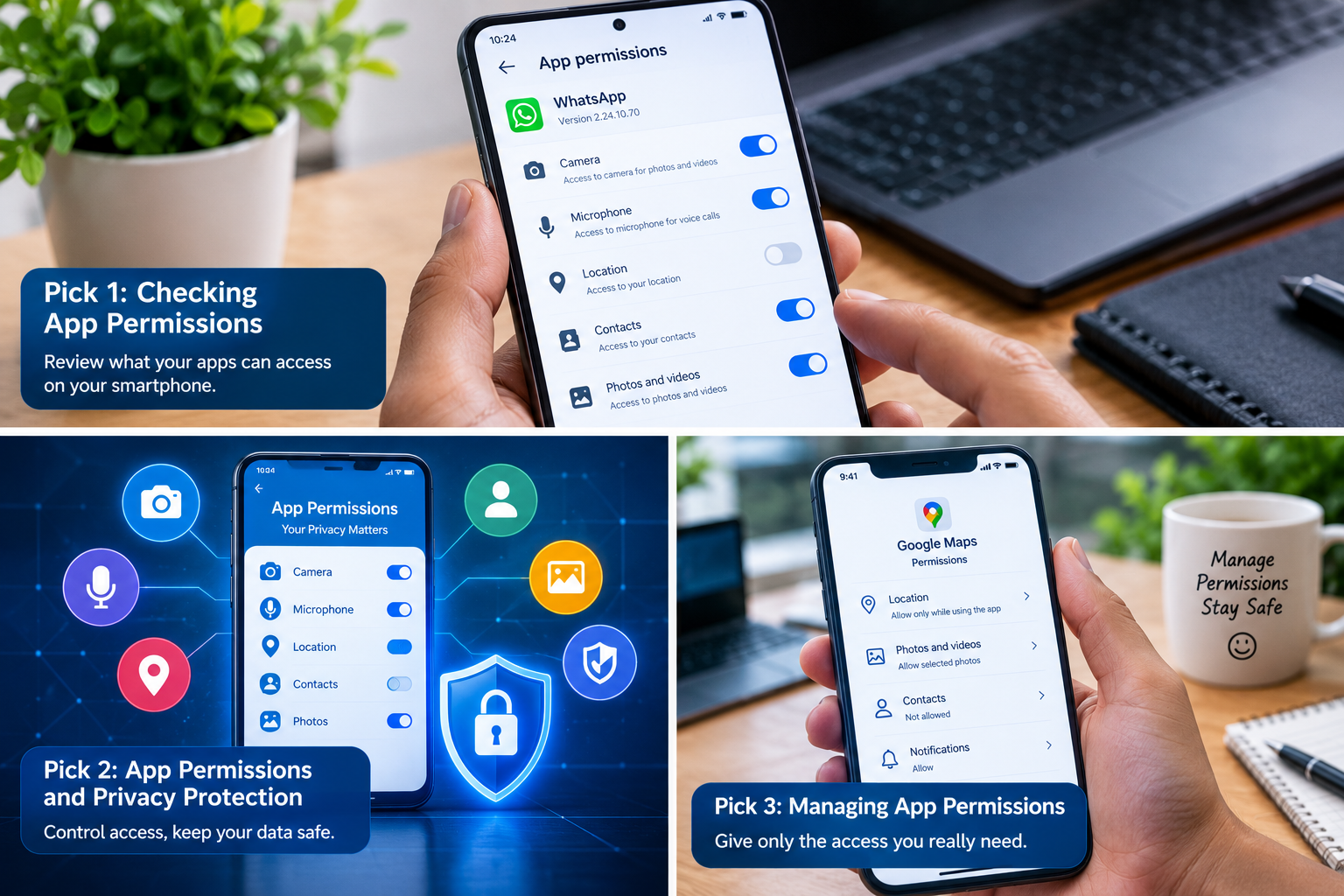
Pick 1: Smartphone App Permissions Settings
Image prompt: Create a realistic smartphone screen displaying an app permission dashboard with camera, microphone, location, contacts, and photo access controls. Show a person’s hand reviewing the settings in a clean, modern workspace with a professional mobile technology aesthetic.
Alt text: Smartphone app permissions settings for camera, microphone, and location.
Pick 2: App Permissions and Privacy Protection
Image prompt: Create a professional cybersecurity illustration of a smartphone surrounded by privacy symbols, including a shield, lock, location pin, camera, and microphone. Show permission toggles on the phone screen and use a polished blue-and-white technology style.
Alt text: App permissions help protect smartphone privacy and personal information.
Pick 3: Managing App Permissions Safely
Image prompt: Create a realistic smartphone privacy settings interface showing an application with location access set to while using the app and photo access limited to selected images. Include a hand reviewing permission options in a bright, modern setting.
Alt text: How to manage app permissions safely on a smartphone.
7. How to Manage App Permissions Safely
Regularly reviewing app permissions is a simple way to maintain better control over your phone. The following practices can help:
- Review permissions regularly: Check which applications can access sensitive features and personal information.
- Use limited access: Prefer options such as while using the app, selected photos, or approximate location when they meet your needs.
- Remove unused applications: Uninstall apps you no longer need instead of leaving them installed indefinitely.
- Check unusual requests: Question permissions that do not match an application’s purpose.
- Update your phone: Install operating system and application updates from trusted sources.
- Review privacy settings: Check notification previews, background location access, and other available controls.
- Investigate unfamiliar apps: If you do not recognize an application, find out what it does before granting additional access.
On Android, permission controls are generally available through Settings and the Apps or Privacy sections. On iPhone, review Settings under Privacy & Security and the relevant app settings. Menu names and available controls vary by device and software version.
8. Comparison Table of App Permissions
The table below explains common permission types, their legitimate uses, and possible privacy concerns.
| Permission | Legitimate use | Potential concern | Safer approach |
|---|---|---|---|
| Camera | Taking photos and video calls | Unnecessary camera access | Allow when needed |
| Microphone | Voice calls and recording | Unnecessary audio access | Limit access to relevant apps |
| Location | Maps and navigation | Unwanted location tracking | Use approximate or while-in-use access |
| Contacts | Finding people in messaging apps | Exposure of contact information | Allow only when necessary |
| Photos | Editing and sharing images | Access to private pictures | Select specific photos when possible |
| Files | Opening and saving documents | Unnecessary access to stored files | Use a file picker |
| Notifications | Alerts and reminders | Sensitive previews or unwanted messages | Disable unnecessary notifications |
9. Graph: App Permissions and Privacy Priority
The following graph uses illustrative priority scores to show which permission categories may deserve closer review. These scores are educational examples, not measured statistics or a scientific risk ranking.
| Permission category | Illustrative review priority out of 5 |
|---|---|
| Location | 5 |
| Camera | 4 |
| Microphone | 4 |
| Contacts | 4 |
| Photos | 4 |
| Files | 4 |
| Notifications | 2 |
Location, camera, microphone, contacts, photos, and files can all expose sensitive information depending on how they are used. Notifications may also reveal private information through message previews. Your actual risk depends on the application, its behavior, the permissions granted, and your personal needs.
Conclusion: Protect Privacy with App Permissions
App permissions help you decide how applications interact with your smartphone and personal information. Camera, microphone, location, contacts, photos, files, and notifications can all support useful features, but unnecessary access may create avoidable privacy risks.
The best approach is to review permission requests carefully, grant only the access required, and check your settings regularly. Pay particular attention to applications that request permissions unrelated to their main purpose.
Remember that permission settings are only one part of mobile security. Download apps from trusted sources, keep your phone updated, and investigate suspicious behavior rather than assuming every application is safe.
With a few simple checks, you can enjoy your favorite smartphone features while maintaining greater control over your privacy and security.