Table of Contents: Run AI Models Locally
- Introduction to Run AI Models Locally
- Why Run AI Models Locally for Better Privacy
- Choose Lightweight Tools to Run AI Models Locally
- Use Ollama to Run AI Models Locally
- Run AI Models Locally with LM Studio
- Use Hardware Efficiently to Run AI Models Locally
- Improve Security When You Run AI Models Locally
- Benefits and Risks of Run AI Models Locally
- Comparison Table for Run AI Models Locally
- Conclusion: Run AI Models Locally with Confidence
Introduction to Run AI Models Locally
Run AI Models Locally is becoming an attractive option for people who want to use artificial intelligence without relying entirely on cloud-based services. Instead of sending every prompt to an online server, you can install a compatible AI model on your own computer and process many requests directly on your device. This approach can improve privacy, reduce dependence on subscriptions, and make AI tools available when your internet connection is unreliable.
However, local AI is not perfect. Performance depends on your computer’s memory, processor, graphics hardware, and the size of the model you choose. Some models also require significant storage and technical configuration. Understanding these factors can help you get useful results without spending money unnecessarily.
This guide explains practical ways to run AI models locally, introduces beginner-friendly tools, and explores the benefits and risks you should understand before getting started.

Why Run AI Models Locally for Better Privacy
One of the biggest reasons to run AI models locally is greater control over your information. When a compatible model operates entirely on your computer, your prompts and documents generally do not need to be sent to an external AI service for inference.
This can be helpful when summarizing personal notes, drafting private documents, experimenting with code, or organizing information stored on your device. Local processing can also reduce dependence on cloud availability and usage limits.
Nevertheless, local AI does not automatically guarantee complete privacy. An application may connect to the internet for updates, model downloads, telemetry, or optional online features. Review the application’s privacy settings and network behavior if confidentiality is important.
How Run AI Models Locally Supports Data Control
Local AI gives you more direct control over where your prompts and files are processed. You can choose your software, decide which models to install, and manage stored conversations on your own device.
For sensitive work, download software from trusted official sources and avoid feeding confidential information into unfamiliar tools. These simple precautions can help you benefit from local processing while reducing avoidable privacy risks.
Choose Lightweight Tools to Run AI Models Locally
Choosing an appropriate model is one of the most important steps in a successful local AI setup. Smaller models generally require fewer resources and can respond faster on modest computers. Larger models may provide stronger reasoning or more detailed responses, but they can demand substantially more memory and processing power.
Quantized models are often useful for beginners. Quantization reduces the numerical precision used to represent model weights, which can lower memory requirements. Depending on the model and quantization method, some accuracy or response quality may be sacrificed.
Find the Right Model to Run AI Models Locally
Start with a small, well-documented model that suits your task. A lightweight language model may be enough for basic writing, simple explanations, or everyday coding assistance. Specialized models may work better for particular tasks, such as programming or multilingual text.
Check the model’s license, hardware requirements, supported languages, and download size before installing it. Avoid assuming that every model is suitable for commercial use or every type of content.
Use Ollama to Run AI Models Locally
Ollama is a popular tool for downloading and running supported language models on personal computers. It provides a command-line interface and can make experimenting with local models more straightforward than manually configuring every component.
After installing Ollama from its official website, select a model that is compatible with your computer. The basic workflow is to download a model and launch it through the command line. For example, a command such as ollama run llama3.2 can launch that model if the relevant model is available through your installed Ollama setup.
Model names and availability can change, so check the current official documentation before following a specific command. Download sizes and resource requirements also vary.
Improve Your Workflow When You Run AI Models Locally
Once your model is working, test it with a few ordinary prompts. Ask it to summarize a short paragraph, explain a technical concept, or draft a simple email. These tests help you understand its strengths and limitations before relying on it for more demanding work.
Keep your software updated, use trusted model sources, and avoid exposing a local model server to the public internet without appropriate security controls.
Run AI Models Locally with LM Studio
LM Studio offers a graphical interface for discovering, downloading, and running supported local language models. It can be a convenient alternative for people who prefer menus and buttons instead of typing commands.
The usual process involves installing the application, finding a compatible model, downloading it, and loading it for local conversations. The interface helps users inspect model options and experiment with settings without building an entire workflow from scratch.

Simplify Model Selection to Run AI Models Locally
Before downloading a model, check its recommended memory requirements and file size. If your computer has limited RAM, begin with a smaller model or a more heavily quantized version.
Use short prompts initially and monitor system performance. If the application becomes unresponsive or your computer starts running out of memory, unload the model and select a lighter alternative. This gradual approach makes troubleshooting easier and reduces wasted time.
Use Hardware Efficiently to Run AI Models Locally
Your hardware has a major influence on the quality of your local AI experience. System RAM helps hold model data, while a compatible GPU with sufficient video memory can accelerate inference. CPU-only operation is also possible with many models, although generation may be slower.
You do not necessarily need an expensive workstation. A modest computer can handle certain smaller models, depending on its specifications and the software being used. The important step is matching model requirements to your available resources.
Optimize Memory When You Run AI Models Locally
Close unnecessary applications before loading a model. Choose a smaller model if your system struggles with memory usage, and ensure you have enough free storage for downloads and supporting files.
If you plan to upgrade your computer, evaluate RAM capacity and GPU memory against the models you actually intend to use. Research compatibility before buying new hardware rather than assuming that a powerful graphics card will solve every limitation.
Improve Security When You Run AI Models Locally
Running a model on your own computer can reduce the amount of information shared with cloud providers, but it introduces responsibilities of its own. Malicious downloads, insecure plugins, exposed network ports, and unsafe scripts can create security problems.
Download applications and model files from trusted sources. Keep your operating system and AI software updated, and review permissions before installing extensions or connecting external tools.
Avoid Common Risks When You Run AI Models Locally
Do not assume that a local AI model produces accurate or safe answers simply because it runs offline. It may invent facts, generate flawed code, or provide outdated information. Verify important claims and test generated code before using it in a real project.
Be cautious with commands suggested by AI tools. Never execute unfamiliar scripts with administrator privileges without understanding what they do. If you use a local model for work, maintain backups and follow your organization’s data-handling rules.
Benefits and Risks of Run AI Models Locally
The benefits of local AI include greater control over data processing, offline access for supported tasks, customization, and the ability to experiment without paying for every cloud request. Once downloaded, a model may be usable without an ongoing inference subscription, although electricity, hardware, storage, and software costs still matter.
The disadvantages include setup effort, hardware limitations, maintenance, and potentially lower performance than advanced cloud models. Some local applications also offer fewer integrated features than hosted services.
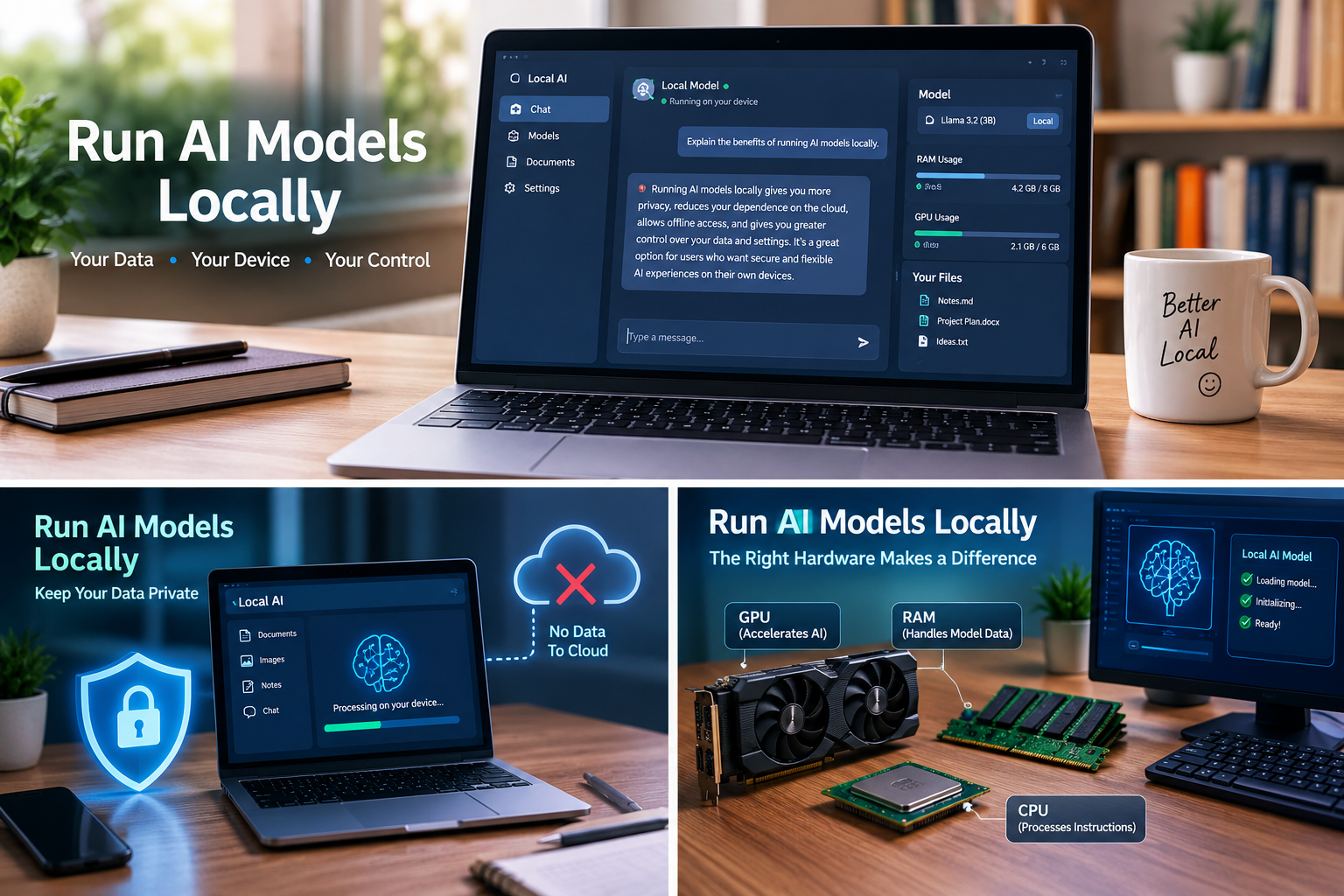
Three Related Picture Ideas for Run AI Models Locally
Picture 1: Run AI Models Locally on a Personal Computer
Show a realistic desktop computer running a local AI assistant, with a clean interface, a small model visualization, and documents stored on the device. Use a modern workspace, natural lighting, and a professional technology-blog aesthetic. Avoid fake brand logos and unreadable text.
Suggested alt text: Run AI models locally on a personal computer.
Picture 2: Run AI Models Locally for Privacy Protection
Create a realistic conceptual image of a laptop processing AI requests locally, with a subtle shield symbol and private documents remaining on the device. Place a cloud icon in the background to represent the alternative of remote processing. Use a clean, trustworthy cybersecurity style.
Suggested alt text: Run AI models locally to improve data privacy.
Picture 3: Run AI Models Locally with Efficient Hardware
Illustrate a computer workstation with a processor, graphics card, RAM modules, and a local AI interface. Use a polished, realistic technology editorial style to communicate the relationship between hardware resources and model performance.
Suggested alt text: Hardware components used to run AI models locally.
Comparison Table for Run AI Models Locally
The following table provides a general comparison of common local AI approaches. Actual performance depends on the computer, model, settings, and workload.
| Approach | Main advantage | Main limitation | Best for |
|---|---|---|---|
| Ollama | Convenient command-line workflow | Requires some command-line familiarity | Developers and experimenters |
| LM Studio | Graphical model management | Uses local storage and system resources | Beginners and desktop users |
| Small quantized models | Lower memory requirements | May reduce response quality | Computers with limited resources |
| Larger local models | Potentially stronger capabilities | Higher hardware requirements | Powerful computers and advanced users |
| Cloud AI services | Access to hosted models without local installation | Internet and provider dependence | Users needing advanced hosted features |
Conclusion: Run AI Models Locally with Confidence
Learning to run AI models locally can give you more control over your AI workflow, improve privacy in suitable setups, and reduce dependence on cloud-based services. Tools such as Ollama and LM Studio make experimentation more accessible, while lightweight and quantized models help users work within hardware limits.
The smartest approach is to begin with a small model, test it on everyday tasks, and upgrade only when your needs justify the additional resources. Protect your computer by downloading trusted software, reviewing network access, and verifying important AI-generated information.
Local AI still has limitations, but careful model selection and sensible security practices can make it a practical option for learning, writing, coding, and personal experimentation. With the right setup, you can explore the advantages of artificial intelligence while maintaining greater control over your own computing environment.