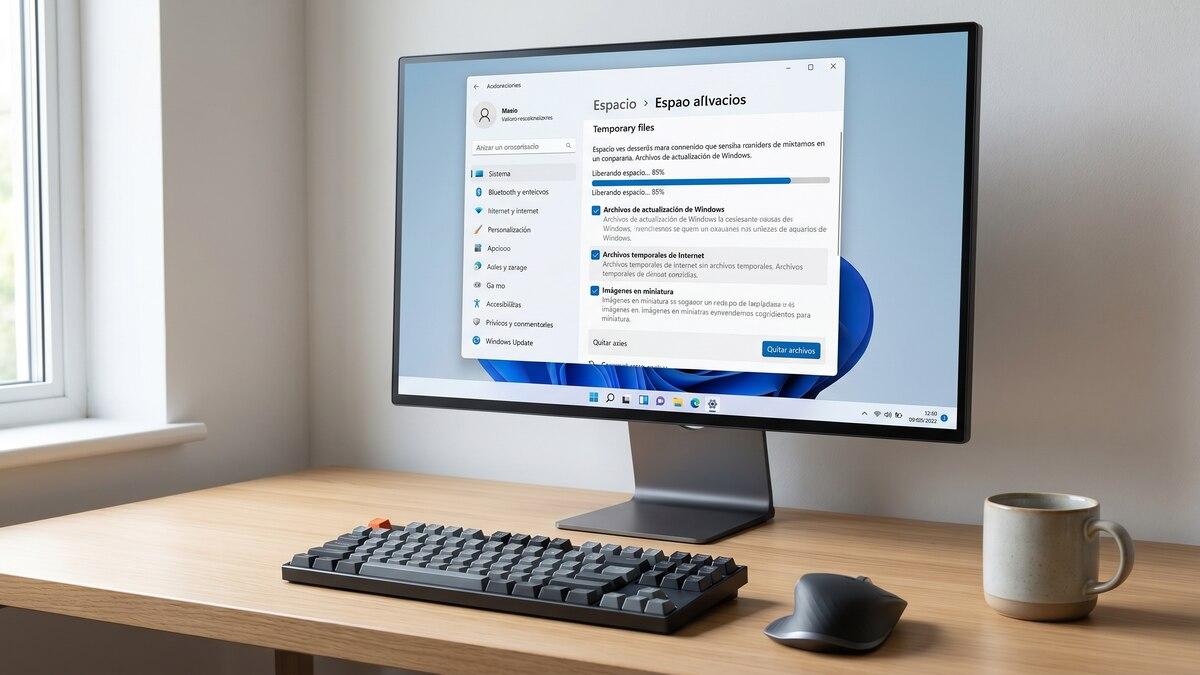
Windows storage tips can help you free up disk space, improve file organization, and keep your computer running smoothly. When a Windows PC starts running out of storage, you may notice update problems, low-disk-space warnings, or difficulty downloading new applications and files. Fortunately, you do not always need to buy a new drive or delete personal documents to solve the problem 8 Powerful Windows Storage Tips: More Space, Fewer Risks.
Learning the right Windows storage tips can help you remove unnecessary files, identify large downloads, manage applications, and use built-in Windows tools safely. However, deleting unfamiliar system files or removing folders without understanding their purpose can cause problems. The safest approach is to begin with Windows’ built-in storage settings and review files before deleting them.
This guide explains eight practical ways to free up Windows storage while reducing the risk of losing important data. Whether you use Windows 10 or Windows 11, these steps can help you manage your disk space more confidently.
Table of Contents
- Use Windows Storage Settings
- Clean Temporary Files Safely
- Empty the Recycle Bin
- Find and Remove Large Unnecessary Files
- Uninstall Applications You No Longer Use
- Use Storage Sense
- Move Personal Files to Another Drive
- Manage Downloads and Cloud Storage
- Windows Storage Tips Comparison Table
- Common Storage-Cleaning Mistakes
- Frequently Asked Questions
- Conclusion
1. Use Windows Storage Settings
One of the easiest Windows storage tips is to begin with the built-in Storage settings. Windows can show how much disk space is being used by installed applications, temporary files, documents, and other categories. This helps you identify where your storage is going before making any changes 8 Powerful Windows Storage Tips: More Space, Fewer Risks.
In Windows 11, open Settings, select System, and then choose Storage. In Windows 10, open Settings, select System, and choose Storage. The exact categories and layout may vary depending on your Windows version.

Check Which Categories Use the Most Space
Review the storage breakdown before deleting anything. If temporary files take up a large amount of space, you may be able to clean them safely. If applications use most of the storage, uninstalling software you no longer need may be more effective.
Why Checking Storage First Matters
Deleting small files may not make much difference if a few large videos or games are using most of the drive. Checking storage first helps you focus on the areas where cleanup is likely to have the greatest impact 8 Powerful Windows Storage Tips: More Space, Fewer Risks.
2. Clean Temporary Files Safely
Windows and many applications create temporary files during normal use. Some become unnecessary over time and may occupy valuable disk space. Windows Storage settings can help you review and remove supported categories of temporary files.
Open Settings, go to System, select Storage, and choose Temporary files if that option is available. Wait for Windows to calculate the categories, then review the list before selecting anything for removal 8 Powerful Windows Storage Tips: More Space, Fewer Risks.
Which Temporary Files Can You Remove?
Temporary files and certain delivery optimization files are often suitable for cleanup through Windows settings. However, the safest choices depend on what Windows displays on your computer.
Be especially careful with the Downloads category. It may contain personal documents, images, installers, or other files you still need. Selecting it for cleanup could delete those files.
Avoid manually deleting unfamiliar folders from the Windows directory or other system locations. Use the built-in cleanup tools rather than guessing which system files are unnecessary 8 Powerful Windows Storage Tips: More Space, Fewer Risks.
3. Empty the Recycle Bin
When you delete a file normally, Windows may move it to the Recycle Bin instead of removing it immediately. Those files can continue using disk space until the bin is emptied.
Open the Recycle Bin from your desktop and review its contents. Restore any files you still need. When you are confident that the remaining items are unnecessary, choose the option to empty the Recycle Bin 8 Powerful Windows Storage Tips: More Space, Fewer Risks.

Check Before Emptying the Bin
Emptying the Recycle Bin can permanently remove its contents through normal Windows recovery options. Do not empty it automatically without checking whether important documents, photos, or work files are inside.
If you frequently delete large videos or archives, reviewing the Recycle Bin can sometimes free a noticeable amount of space. The amount depends on how much data has accumulated 8 Powerful Windows Storage Tips: More Space, Fewer Risks.
4. Find and Remove Large Unnecessary Files
Large files can consume more storage than hundreds of small temporary files. Videos, old installers, duplicate downloads, virtual machines, and archived projects may take up several gigabytes.
Open File Explorer and review folders such as Downloads, Videos, Documents, and Desktop. You can use the search and sorting options to locate large files and organize them by size where supported 8 Powerful Windows Storage Tips: More Space, Fewer Risks.
Decide What to Keep
Before deleting a large file, open it or check its name, location, and date. An old installer may no longer be necessary, but a video, school assignment, family photograph, or project backup may be valuable.
Move important files to an external drive or another trusted storage location if you do not need them on your main drive every day. Verify that the copied files open correctly before deleting the original copies.
Avoid Deleting Unknown System Files
Do not remove unfamiliar files from Windows, Program Files, or application data folders simply because they are large. These files may be necessary for Windows or installed programs to work properly.
5. Uninstall Applications You No Longer Use
Installed applications, games, and creative software can use substantial disk space. Removing software that you no longer need is often more effective than repeatedly deleting small temporary files.
In Windows 11, open Settings, choose Apps, and then Installed apps. In Windows 10, open Settings, select Apps, and review Apps & features. Select an application you recognize and no longer use, then choose Uninstall 8 Powerful Windows Storage Tips: More Space, Fewer Risks.
Review Large Applications First
Games, video-editing software, development tools, and other specialized applications may occupy significant space. Check their size when Windows provides that information, and prioritize applications that you no longer need.
Keep essential drivers, security tools, and unfamiliar system components installed unless you have verified that they can be removed safely. If you are unsure what an application does, research its publisher and purpose before uninstalling it.
6. Use Storage Sense
Storage Sense is a built-in Windows feature that can automatically manage certain types of storage, including temporary files. Depending on your settings, it can also manage files in the Recycle Bin and local copies of cloud files 8 Powerful Windows Storage Tips: More Space, Fewer Risks 8 Powerful Windows Storage Tips: More Space, Fewer Risks.
To configure it in Windows 11, open Settings, select System, choose Storage, and open Storage Sense. In Windows 10, the feature is available through Storage settings, although its options can vary by version.
Configure Automatic Cleanup Carefully
Choose settings that match your needs. For example, you can review how frequently Windows runs cleanup and how long items remain in the Recycle Bin before automatic removal.
Be cautious with cloud files and the Downloads folder. Depending on the options you select, Windows may remove local copies or delete eligible files according to your cleanup rules. Understand each setting before enabling it.
Storage Sense is useful because it can reduce the need for repeated manual cleanup. However, it should be configured thoughtfully rather than treated as a tool that can delete anything safely.
7. Move Personal Files to Another Drive
If your Windows drive is nearly full, moving large personal files to another drive can provide more space without permanently deleting them. This can be useful for computers with a small solid-state drive and a larger secondary drive.
You may be able to move videos, archived projects, old downloads, and other files to an external hard drive or another internal drive. Cloud storage can also help when configured correctly.
Transfer Files Safely
Copy the files to the destination first. Open several copied files to confirm that the transfer worked, and make sure the destination drive is reliable. Only then should you consider removing the original copies 8 Powerful Windows Storage Tips: More Space, Fewer Risks.
For important documents and photographs, keep an additional backup whenever possible. A single external drive can fail, so moving files is not the same as creating a complete backup.
If you use cloud storage, check whether your files are fully uploaded before removing local copies. A cloud service may synchronize deletions across devices, depending on its settings.
8. Manage Downloads and Cloud Storage
The Downloads folder often accumulates installers, compressed archives, documents, images, and files downloaded only once. Reviewing it regularly can help you recover space without affecting Windows system files.
Open File Explorer, select Downloads, and sort files by date or size. Review each item and remove only those you recognize and no longer need. Move important files to organized folders so you can find them later 8 Powerful Windows Storage Tips: More Space, Fewer Risks.
Organize Files for Future Cleanup
Create folders for documents, images, schoolwork, software installers, and archived projects. Clear organization makes it easier to distinguish useful files from unnecessary downloads.
If you use OneDrive or another cloud service, review its storage and synchronization settings. Some services offer online-only files, allowing files to remain in the cloud while taking up less local disk space. The availability and behavior of this feature depend on the service and configuration.
Remember that removing a file from a synchronized folder may delete it from the cloud and other connected devices. Use the service’s official instructions and verify the difference between making a file online-only and deleting it 8 Powerful Windows Storage Tips: More Space, Fewer Risks.
Windows Storage Tips Comparison Table
Different cleanup methods provide different benefits. This table can help you choose a suitable starting point.
| Method | Main benefit | Important caution |
|---|---|---|
| Storage settings | Shows where space is used | Review categories before deleting |
| Temporary file cleanup | Removes selected unnecessary files | Check the Downloads category carefully |
| Empty Recycle Bin | Reclaims space from deleted items | Restore anything important first |
| Find large files | Targets files using significant space | Do not delete unknown system files |
| Uninstall unused apps | Removes software you no longer need | Keep essential applications and drivers |
| Storage Sense | Automates eligible cleanup tasks | Check automatic deletion settings |
| Move files to another drive | Frees space while retaining files | Verify the copy and maintain backups |
| Manage cloud storage | Reduces local storage use | Understand synchronization behavior |
Windows Storage Cleanup: Illustrative Priority Graph
The following scores are illustrative planning scores, not measured results. They show which methods may be worth checking first, depending on your computer’s storage situation.
| Cleanup method | Illustrative priority |
|---|---|
| Review large files | 9/10 |
| Uninstall unused large apps | 9/10 |
| Review temporary files | 8/10 |
| Check Downloads | 8/10 |
| Review Recycle Bin | 7/10 |
| Configure Storage Sense | 8/10 |
The actual amount of space recovered varies. A computer filled with large games may benefit more from uninstalling unused applications, while a computer with many old downloads may benefit more from reviewing personal files.
Common Windows Storage Mistakes to Avoid
One dangerous mistake is deleting files from system folders without knowing what they do. Windows and installed applications rely on many files that may look unfamiliar. Removing them manually can lead to errors or software problems.
Another mistake is selecting every cleanup category without reading its description. The Downloads folder may contain important files, and cloud synchronization can cause deletions to affect other devices.
Some third-party cleaning applications also make broad claims about performance improvements. Use trusted software and understand what it removes before granting it access to your computer 8 Powerful Windows Storage Tips: More Space, Fewer Risks.
Finally, do not confuse storage cleanup with every type of performance improvement. Freeing disk space can help when a drive is nearly full, but it will not necessarily solve problems caused by insufficient memory, overheating, or failing hardware.
Frequently Asked Questions
How can I free up Windows storage safely?
Start with Windows Storage settings, review temporary files, empty the Recycle Bin after checking its contents, and uninstall applications you no longer use. Back up important files before making major changes.
Is it safe to delete temporary files in Windows?
Many temporary file categories can be cleaned safely through Windows’ built-in tools. However, review each category carefully and avoid deleting files whose purpose you do not understand.
Does Storage Sense delete personal files?
Storage Sense follows the settings you configure. Depending on those settings, it may remove eligible temporary files, Recycle Bin items, or local copies of cloud files. Review its options before enabling automatic cleanup 8 Powerful Windows Storage Tips: More Space, Fewer Risks.
Why is my Windows drive full even after deleting files?
Space may still be used by installed applications, large personal files, temporary files, restore points, or other system-managed data. Check the Storage breakdown to identify the main cause.
Should I use third-party PC cleaner software?
You usually can start with Windows’ built-in storage tools. If you consider third-party software, choose a reputable provider, read its removal options, and avoid tools that encourage deleting unfamiliar system files.
How often should I clean Windows storage?
Check your storage periodically or when Windows warns that space is running low. Storage Sense can automate some maintenance tasks if you configure it appropriately 8 Powerful Windows Storage Tips: More Space, Fewer Risks.
Conclusion
These eight Windows storage tips can help you recover disk space, organize files, and reduce the risk of accidental data loss. Start by checking Windows Storage settings, then review temporary files, the Recycle Bin, large downloads, and applications you no longer use 8 Powerful Windows Storage Tips: More Space, Fewer Risks.
For longer-term storage management, configure Storage Sense carefully, move important files to a reliable destination, and maintain backups. Avoid deleting unfamiliar system files or selecting cleanup options without understanding their effects.
With a few safe habits, you can make better use of your available storage and keep your Windows computer organized without taking unnecessary risks 8 Powerful Windows Storage Tips: More Space, Fewer Risks.