Table of Content
- Introduction to Free PDF Editing Tools
- PDFgear: Free PDF Editing Tools for Beginners
- PDF24: Free PDF Editing Tools for Windows
- Sejda: Free PDF Editing Tools Online
- iLovePDF: Free PDF Editing Tools for Everyday Tasks
- Smallpdf: Free PDF Editing Tools for Quick Changes
- Adobe Acrobat: Free PDF Editing Tools for Basic Tasks
- LibreOffice Draw: Free PDF Editing Tools for Documents
- Comparison Table of Free PDF Editing Tools
- How to Choose Free PDF Editing Tools Safely
- Conclusion: Choose Free PDF Editing Tools Wisely
Introduction to Free PDF Editing Tools
Free PDF Editing Tools make it easier to update documents, add signatures, fill out forms, organize pages, and convert files without immediately paying for expensive software. Whether you are a student, blogger, office worker, or small business owner, the right PDF editor can help you complete everyday document tasks more efficiently.
PDF files are widely used because they preserve document layouts across different devices. However, changing existing text, rearranging pages, or editing scanned documents can be difficult without suitable software. Fortunately, several free tools provide useful features for common PDF tasks.
Not every free editor offers the same capabilities. Some allow annotations and signatures, while others can change existing text, combine files, or recognize text in scanned documents. Certain online tools also impose file-size limits, usage restrictions, or account requirements.
This guide explores seven free PDF editing tools, explains their main features, and helps you choose an option that matches your needs while protecting your documents.
1. PDFgear: Free PDF Editing Tools for Beginners
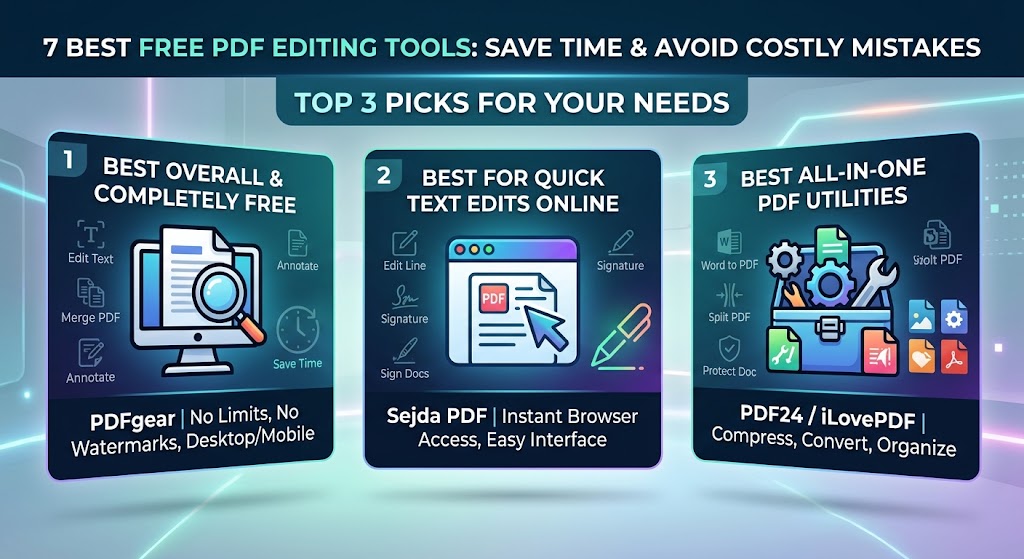
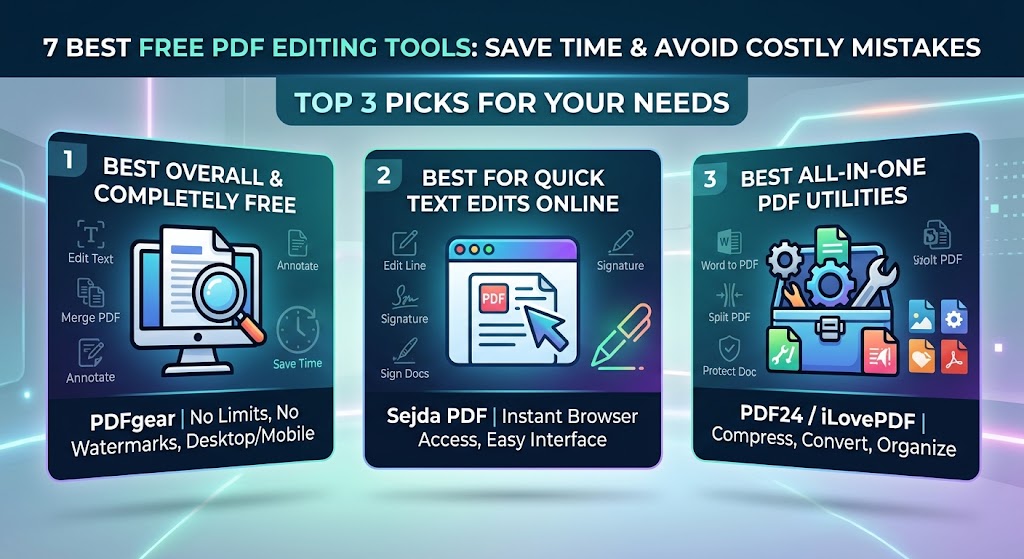
PDFgear is a useful option for people who want to edit PDF documents without committing to a paid subscription. Its desktop software offers features for editing existing text, inserting images, adding signatures, annotating documents, and managing pages.
Key Features of PDFgear as One of the Free PDF Editing Tools
- Text editing: Change existing text using the desktop application.
- Page management: Rearrange, rotate, insert, or delete pages.
- Document conversion: Convert supported PDFs into other file formats.
- OCR support: Extract text from scanned documents using optical character recognition.
- Annotations: Highlight content, add comments, and mark important sections.
PDFgear is particularly useful for students and home users who need more than a basic PDF viewer. Its online editor and desktop application do not necessarily offer identical features, so check which version supports your required task.
Official website: https://www.pdfgear.com/
2. PDF24: Free PDF Editing Tools for Windows
PDF24 provides a collection of PDF utilities for creating, editing, converting, compressing, and organizing documents. Its desktop application, PDF24 Creator, is especially useful for Windows users who prefer installed software.
Why PDF24 Is Among the Practical Free PDF Editing Tools
- Merge and split: Combine several PDFs or separate a document into smaller files.
- Compression: Reduce file size for easier sharing.
- Page organization: Rotate and rearrange pages using supported tools.
- Conversion: Create PDFs from other document formats and use available conversion features.
- Offline work: Desktop features can help users process documents locally.
PDF24 is a strong choice for people who regularly handle multiple documents. However, it is important to distinguish between adding text or annotations and directly modifying the original text inside a PDF. Its capabilities differ from those of a full text editor.
Official website: https://www.pdf24.org/
3. Sejda: Free PDF Editing Tools Online
Sejda is a browser-based PDF editor that allows users to make changes without installing desktop software. It can be convenient when you need to edit a document from a computer that you do not regularly use.
Useful Features of Sejda Free PDF Editing Tools
- Text editing: Modify supported PDF text.
- Annotations: Add notes, highlights, and other markings.
- Page management: Organize pages and perform supported document operations.
- Form support: Complete certain PDF forms and add signatures.
- Browser access: Open the editor through a compatible web browser.
The main limitation is that the free version has usage restrictions, which may include limits on file size, page count, or the number of tasks completed within a period. Check the current terms before starting a large project.
For occasional edits, Sejda can be a convenient option. For frequent editing, compare its restrictions with those of desktop alternatives.
Official website: https://www.sejda.com/
4. iLovePDF: Free PDF Editing Tools for Everyday Tasks
iLovePDF offers a collection of browser-based PDF utilities for people who frequently work with digital documents. It is especially useful for straightforward tasks such as merging files, splitting pages, compressing PDFs, and converting documents.
How iLovePDF Free PDF Editing Tools Save Time
- Merge PDFs: Combine multiple documents into one file.
- Split PDFs: Extract pages or divide a large document.
- Compress files: Reduce document size for email or online submissions.
- Convert formats: Work with supported Word, image, and PDF conversions.
- Sign and organize: Use available tools to prepare and manage documents.
Its simple interface makes it approachable for beginners. However, some advanced features or heavier usage may require a paid plan, and free limits can vary.
If you only need to combine class notes, compress an assignment, or convert a document, iLovePDF is worth considering.
Official website: https://www.ilovepdf.com/
5. Smallpdf: Free PDF Editing Tools for Quick Changes
Smallpdf provides online tools for managing PDF documents. Its interface is designed to make common document tasks straightforward, particularly for users who do not want to install software.
Main Benefits of Smallpdf Free PDF Editing Tools
- Quick conversions: Convert supported files to and from PDF.
- Compression: Make large documents easier to upload or share.
- Annotations: Add notes, highlights, and other supported markings.
- Signatures: Sign documents using available signing features.
- Page operations: Use supported tools to organize PDF files.
Smallpdf is suitable for quick document preparation, but its free plan does not necessarily include every advanced editing feature. In particular, adding text or comments is different from changing existing body text. Check the current plan details before relying on a feature.
For users who occasionally need to prepare documents for work or study, Smallpdf offers a convenient browser-based workflow.
Official website: https://smallpdf.com/
6. Adobe Acrobat: Free PDF Editing Tools for Basic Tasks
Adobe Acrobat is widely associated with the PDF format and offers tools for viewing, commenting on, and managing PDF documents. Its free Reader application is useful for reading PDFs, filling supported forms, adding comments, and signing certain documents.
What Adobe Acrobat Free PDF Editing Tools Can Do
- Read documents: Open and view PDF files.
- Add comments: Review text and provide feedback.
- Complete forms: Fill out supported interactive forms.
- Sign documents: Use available signing functions.
- Review content: Highlight passages and add annotations.
A key limitation is that advanced editing of existing PDF text generally requires a paid Acrobat plan. Some online functions are available free, but their features and download requirements can differ.
Adobe Acrobat is a sensible option if your main goal is viewing, reviewing, and signing documents. If you need to rewrite existing paragraphs without paying, compare other free editors first.
Official website: https://www.adobe.com/acrobat.html
7. LibreOffice Draw: Free PDF Editing Tools for Desktop Users
LibreOffice Draw is part of the free, open-source LibreOffice productivity suite. It can open many PDF documents and allow users to modify supported text elements, objects, and page content.
Why LibreOffice Draw Is Useful Among Free PDF Editing Tools
- Desktop access: Work with supported documents without depending on a browser-based editor.
- Object editing: Move or adjust elements that can be interpreted by the application.
- Text changes: Modify editable text objects where the document structure allows it.
- Document control: Work with files stored on your computer.
- Open-source software: Use the suite without a conventional paid subscription.
PDF editing results can vary depending on the original document. Complex layouts, unusual fonts, columns, and scanned pages may not convert perfectly when opened for editing.
For best results, keep an untouched copy of the original PDF and inspect the edited version carefully before sharing it.
Official website: https://www.libreoffice.org/
Three Related Picture Ideas for Free PDF Editing Tools
Pick 1: Free PDF Editing Tools for Students
Image prompt: Create a realistic laptop displaying a PDF document editor with highlighted text, editable paragraphs, a signature field, and organized document pages. Include notebooks and study materials on a clean desk. Use a modern, professional technology-blog aesthetic.
Alt text: Free PDF editing tools for students and document editing.
Pick 2: Free PDF Editing Tools for Online Documents
Image prompt: Create a realistic computer screen showing a browser-based PDF editor with merge, split, compress, convert, and sign options. Show a neatly organized digital workspace with a bright, clean interface and a professional editorial style.
Alt text: Free PDF editing tools for managing and converting documents online.
Pick 3: Free PDF Editing Tools for Document Security
Image prompt: Create a professional cybersecurity illustration of a PDF document on a laptop protected by a shield and padlock. Include a local file icon, privacy settings, and a person reviewing the document before sharing it. Use a modern blue-and-white color palette.
Alt text: Free PDF editing tools with document privacy and security.
Comparison Table of Free PDF Editing Tools
The following table summarizes what each tool is generally best suited for. Available features and free-plan limits can change, so confirm the details on the official website before using a tool for an important project.
| Tool | Best use | Main limitation |
|---|---|---|
| PDFgear | Editing existing text and managing PDFs | Online and desktop features differ |
| PDF24 | Windows document utilities and page operations | Direct text editing is more limited |
| Sejda | Occasional browser-based editing | Free usage limits apply |
| iLovePDF | Merging, splitting, compressing, and converting | Some features have usage limits |
| Smallpdf | Quick online PDF tasks | Advanced features may require payment |
| Adobe Acrobat Reader | Reading, commenting, and signing | Advanced text editing is paid |
| LibreOffice Draw | Desktop editing of supported PDF content | Complex layouts may change |
How to Choose Free PDF Editing Tools Safely
Before selecting a PDF editor, identify the task you need to complete. Editing an existing paragraph requires different functionality from highlighting text, signing a form, or combining several files.
Use these practical guidelines:
- Check editing capabilities: Confirm that the free version supports your exact task.
- Review usage limits: Check file-size restrictions, page limits, watermarks, and account requirements.
- Protect private documents: Avoid uploading confidential contracts, financial records, or identity documents to unfamiliar online services.
- Prefer local processing when appropriate: Desktop software can help keep files on your computer, depending on the application and feature used.
- Keep a backup: Save a copy of the original PDF before making substantial changes.
- Check formatting: Review fonts, tables, page numbers, images, and spacing after editing.
- Verify the final file: Reopen the exported PDF to ensure that it displays correctly on another device or PDF reader.
A Simple Workflow for Free PDF Editing Tools
Start by opening a copy of your PDF in the selected editor. Make the required changes, save or export the result, and reopen the finished document. If the PDF contains scanned pages, check whether OCR is required before attempting to edit its text.
For sensitive documents, inspect the tool’s privacy practices and understand whether processing takes place locally or on a remote server. A free service can still have important privacy considerations.
Graph: Choosing Free PDF Editing Tools by Main Purpose
The following graph uses illustrative scores to show how different tools might be shortlisted for particular tasks. These scores are examples for article presentation, not measured test results or verified product ratings.
| PDF editing task | Illustrative importance score out of 5 |
|---|---|
| Editing existing text | 5 |
| Merging and splitting files | 4 |
| Compressing documents | 4 |
| Signing PDF forms | 4 |
| Adding comments and highlights | 3 |
| Protecting confidential files | 5 |
These scores represent the importance of each task in this example, not the performance of any specific tool. Your best choice depends on which features you need and how you handle sensitive information.
Conclusion: Choose Free PDF Editing Tools Wisely
Free PDF editing tools can help you prepare assignments, update business documents, sign forms, compress files, and organize digital paperwork without immediately paying for premium software. PDFgear and LibreOffice Draw can be useful for desktop editing, PDF24 offers a broad set of utilities, and browser-based options such as Sejda, iLovePDF, and Smallpdf can simplify quick tasks.
Adobe Acrobat Reader remains useful for reading, commenting on, and signing PDFs, although advanced text editing generally requires payment.
The best option is not necessarily the tool with the most features. It is the one that supports your required task, fits your device, respects your privacy needs, and produces a reliable final document. Check free-plan limits, keep backups, and inspect your finished PDF before sharing it.
With the right tool and a few careful checks, you can save time, avoid unnecessary expenses, and manage PDF documents more confidently.